
The member guide
How To Use Thirsty Cellar
Your wines, where to drink them, Caviste, and the people you follow, step by step. The app is free.
Follow the numbers: each one on the screen matches the line with the same number. These screens come from a demo account, Alex Martin. Every wine in them is invented, and so is Chez Demo, the bar.
Step one
Get Started
Download Thirsty Cellar from the App Store, then make your account. You need to be of legal drinking age.
-
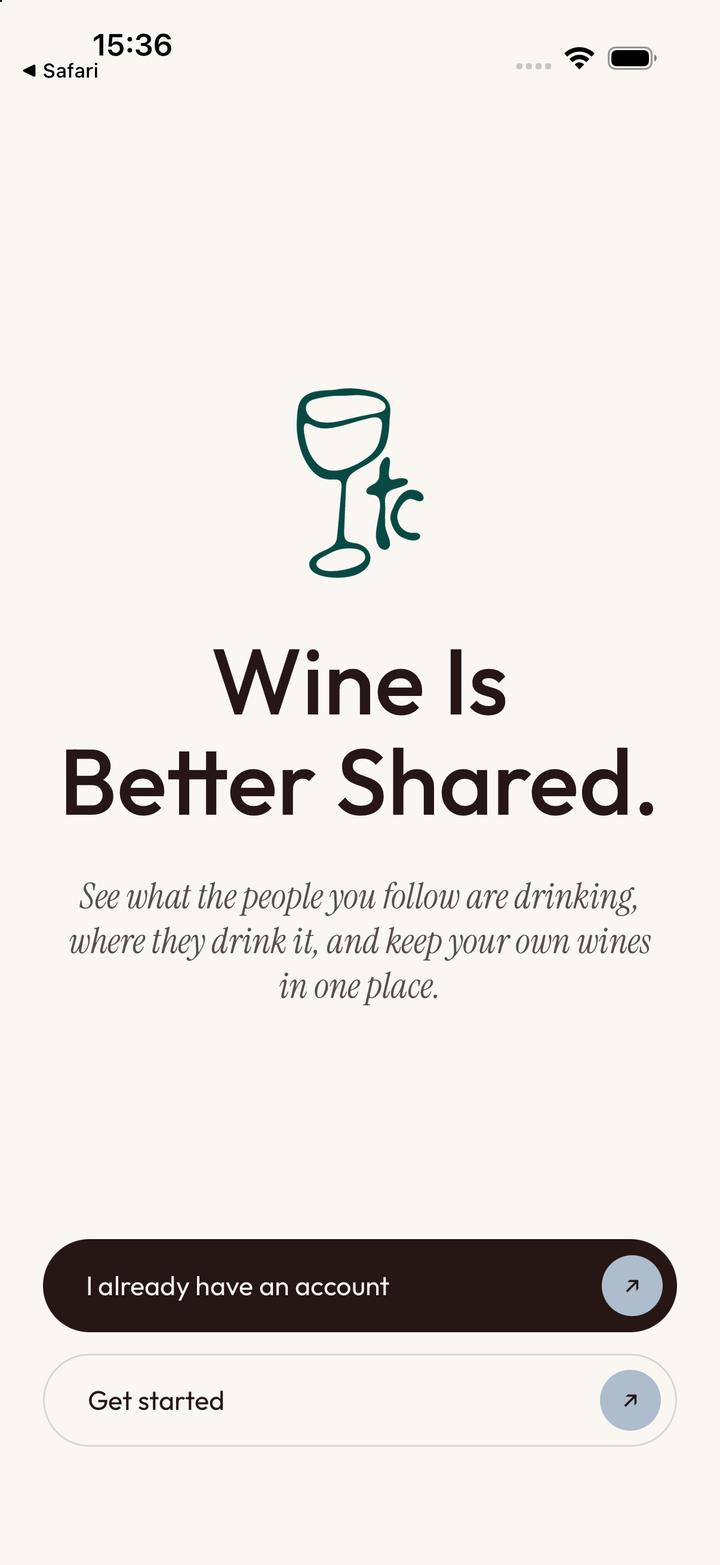
Open the app
- Get Started to make a new account.
- I already have an account to sign in.
-
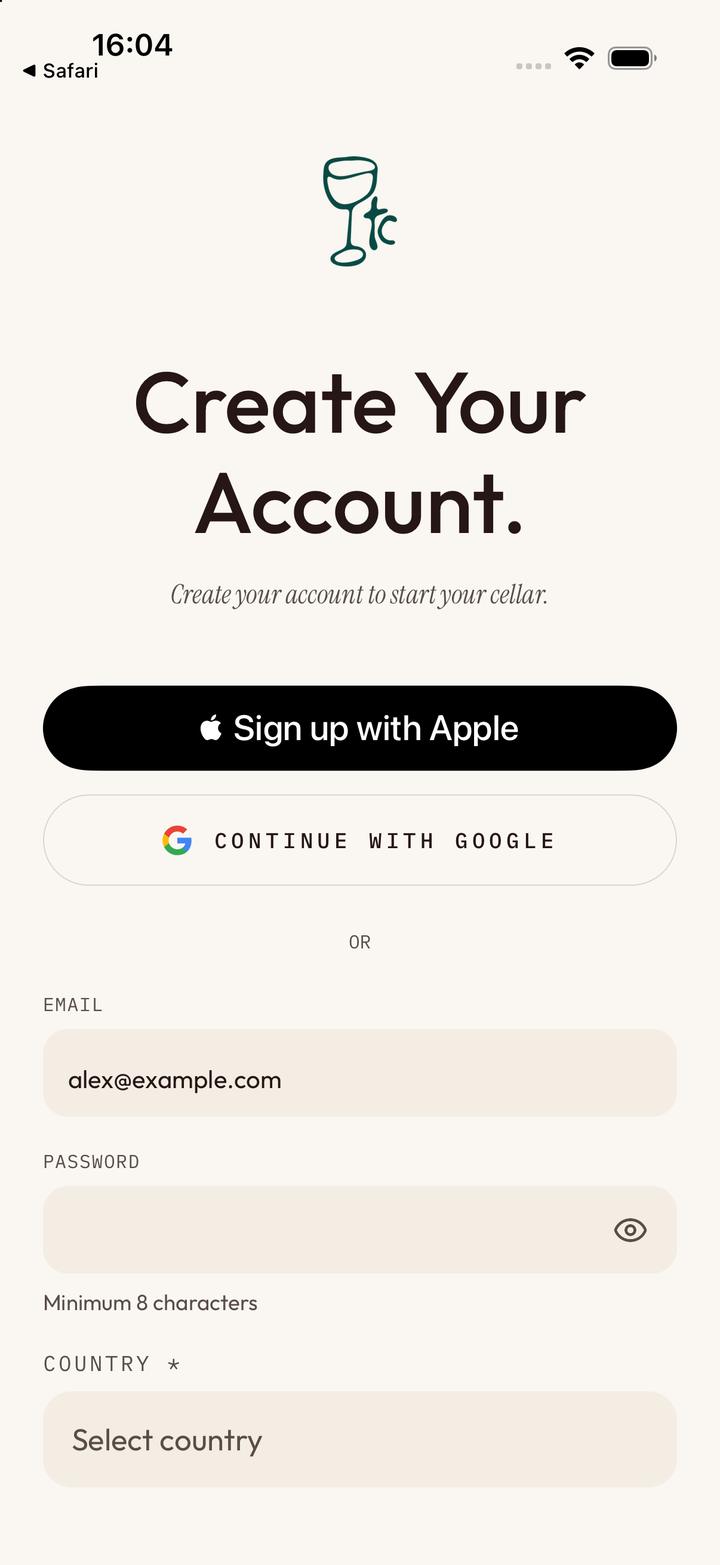
Choose how to sign up
- Sign up with Apple or Google in one tap,
- or type your email,
- and a password of at least 8 characters.
-
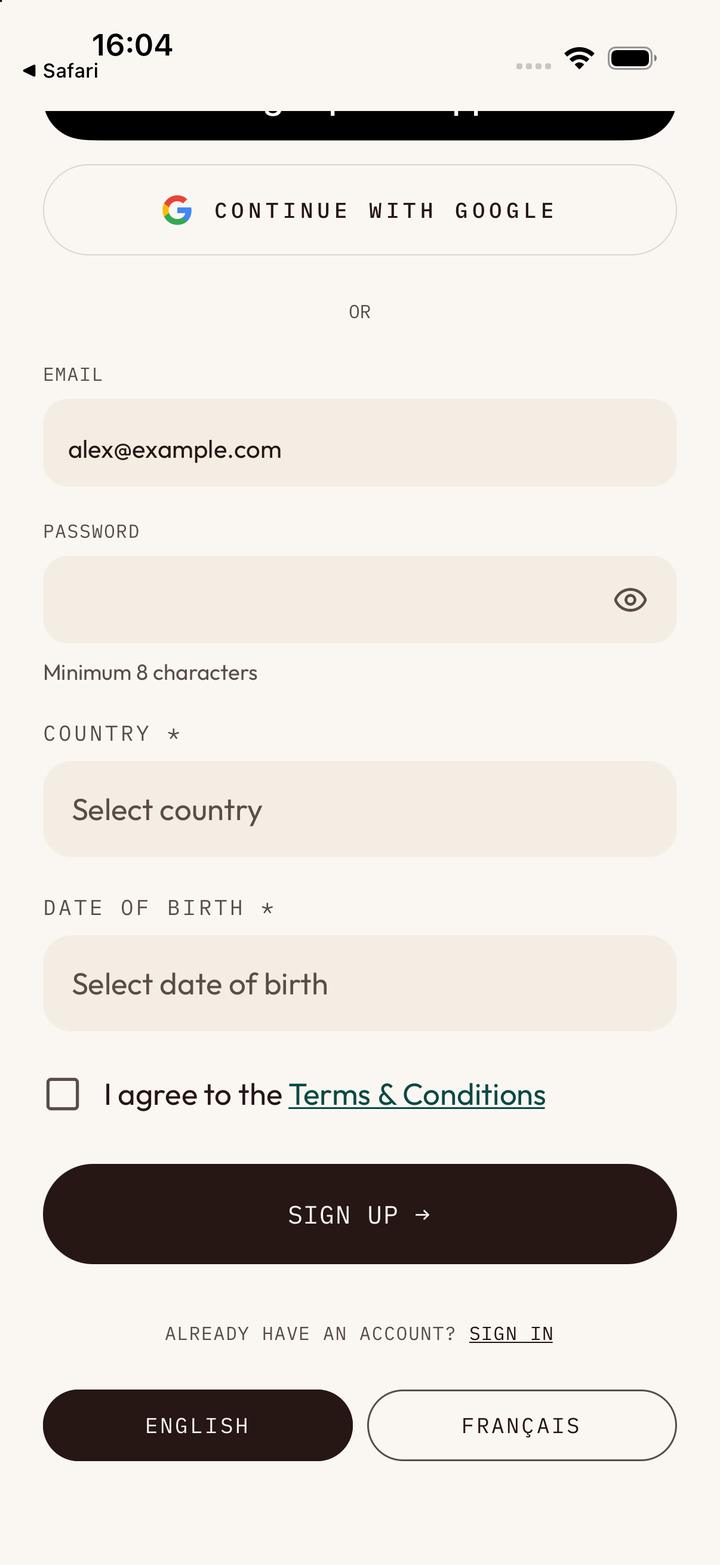
A few details
The language buttons at the bottom switch the app to English or French.
- Your country.
- Your date of birth.
- Tick to agree to the Terms & Conditions.
- Tap Sign Up.
Your wines
Keep Your Wines
Every wine you drink, buy or want to remember, in one place.
-
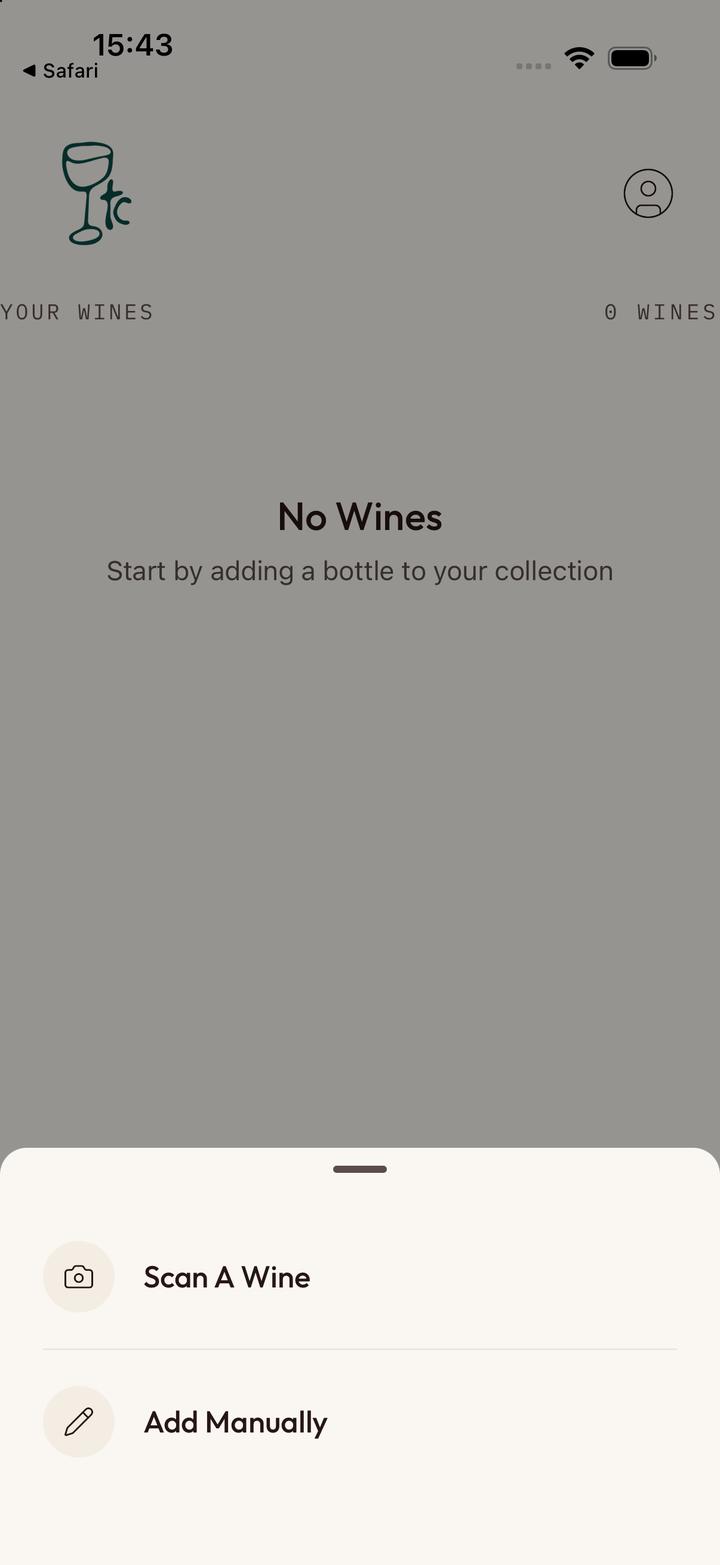
Add a wine
Tap the green + on any screen.
- Scan a wine: take a photo of the label and the app reads it.
- Add manually: type it yourself.
-
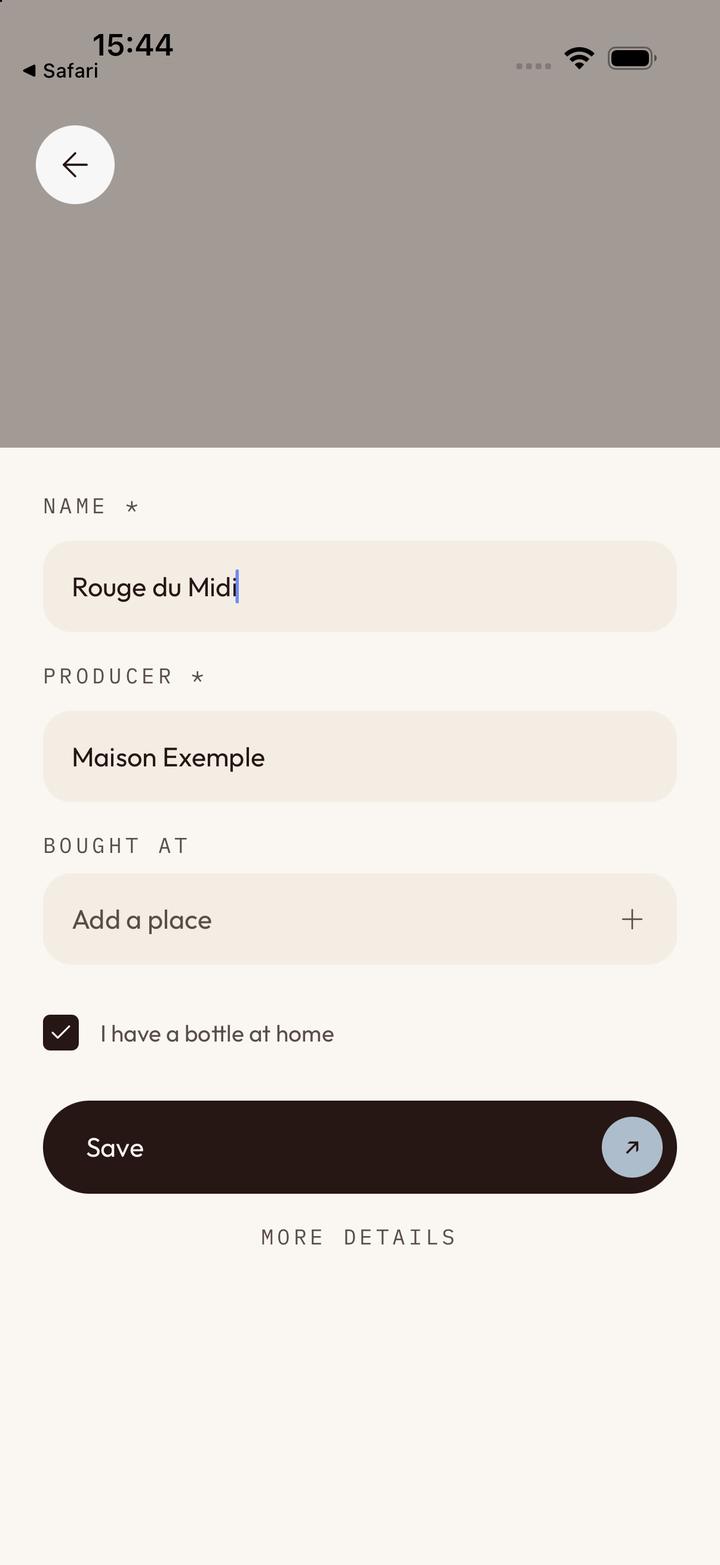
Type it in
- The wine’s name.
- Who makes it.
- Tick if you have a bottle at home.
- Tap Save.
-
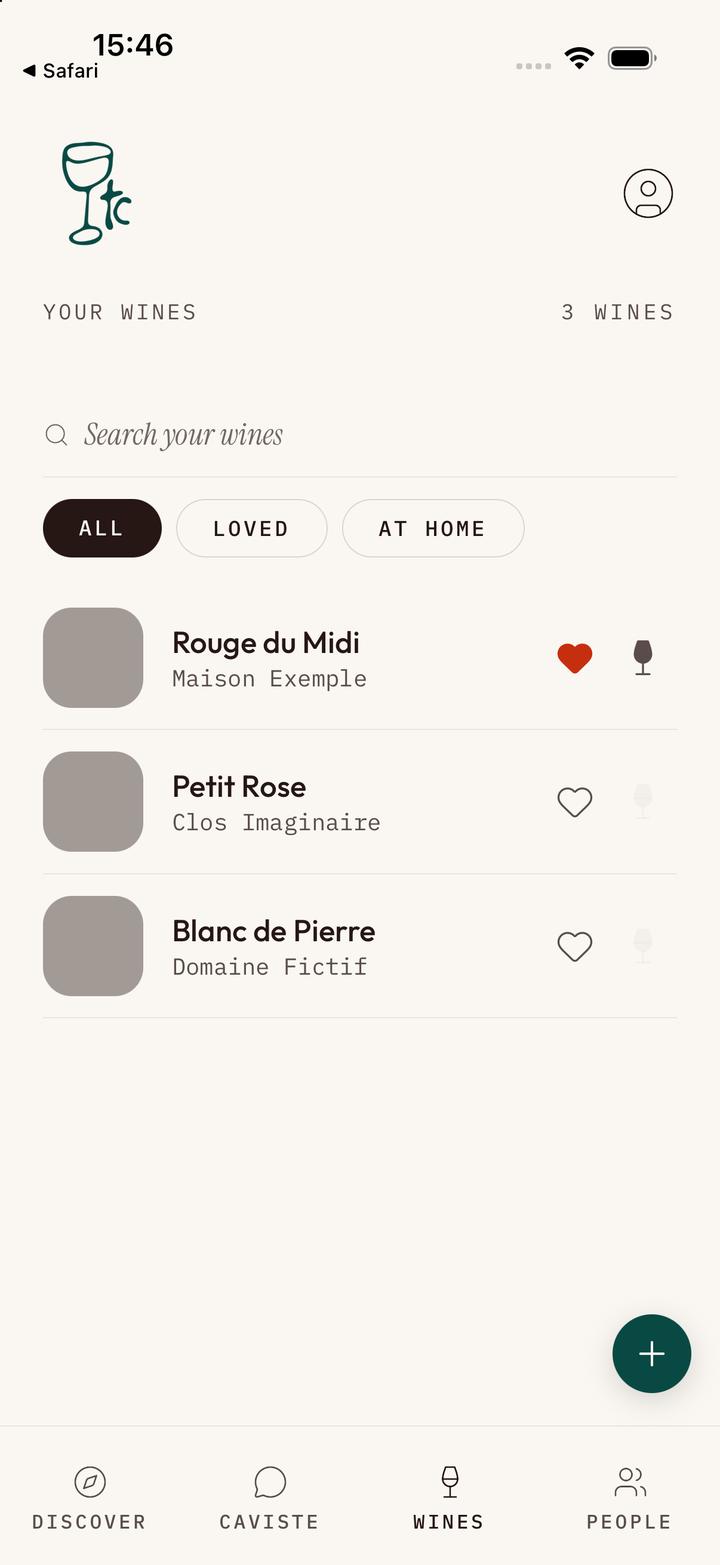
All your wines
- Show all of them, the ones you love, or the bottles at home.
- Tap a wine to open it.
- Tap the heart to say you love it.
- Add another wine.
-
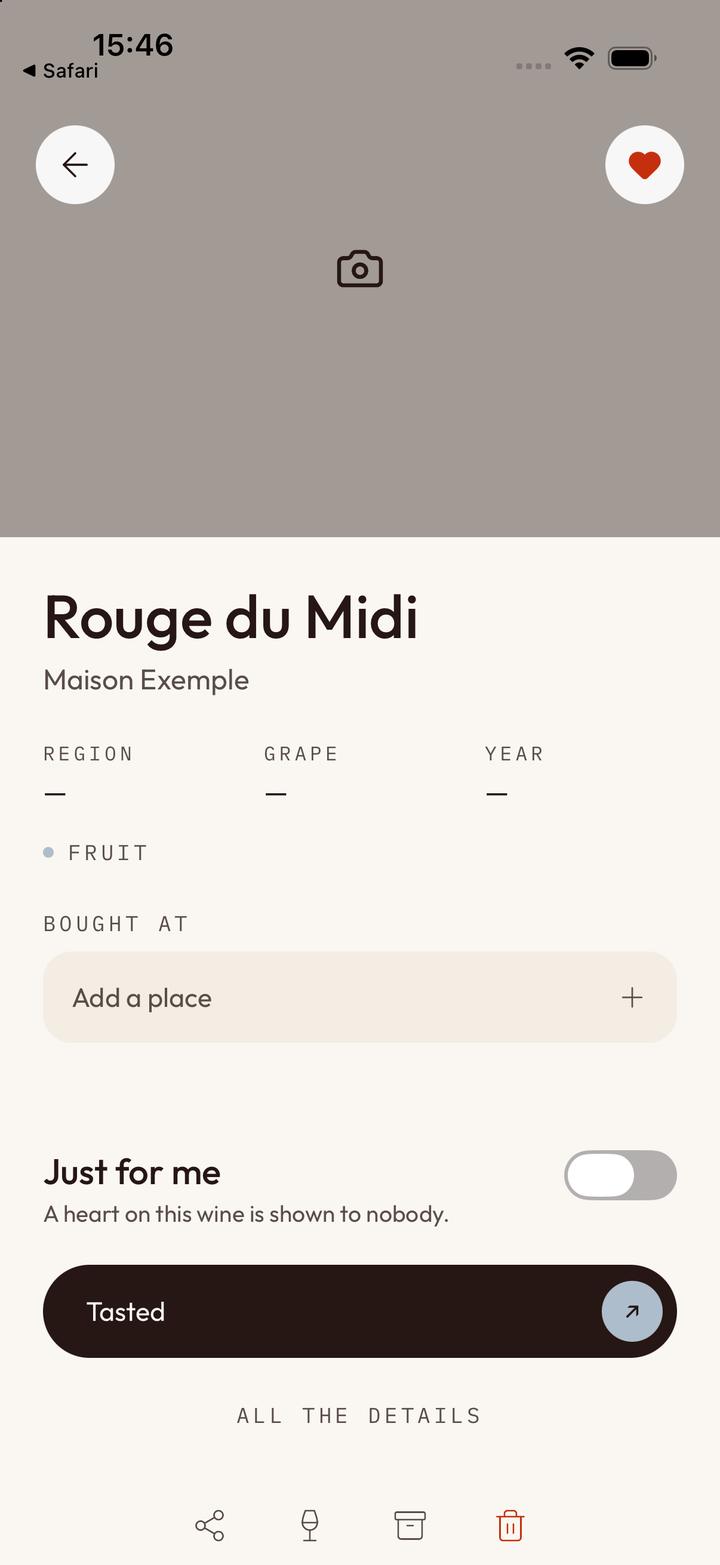
One wine
- Your heart on it.
- Just for me: nobody else sees your heart on this wine.
- Tasted: write down how it was.
- Share it, mark the bottle as drunk, archive it or delete it.
-
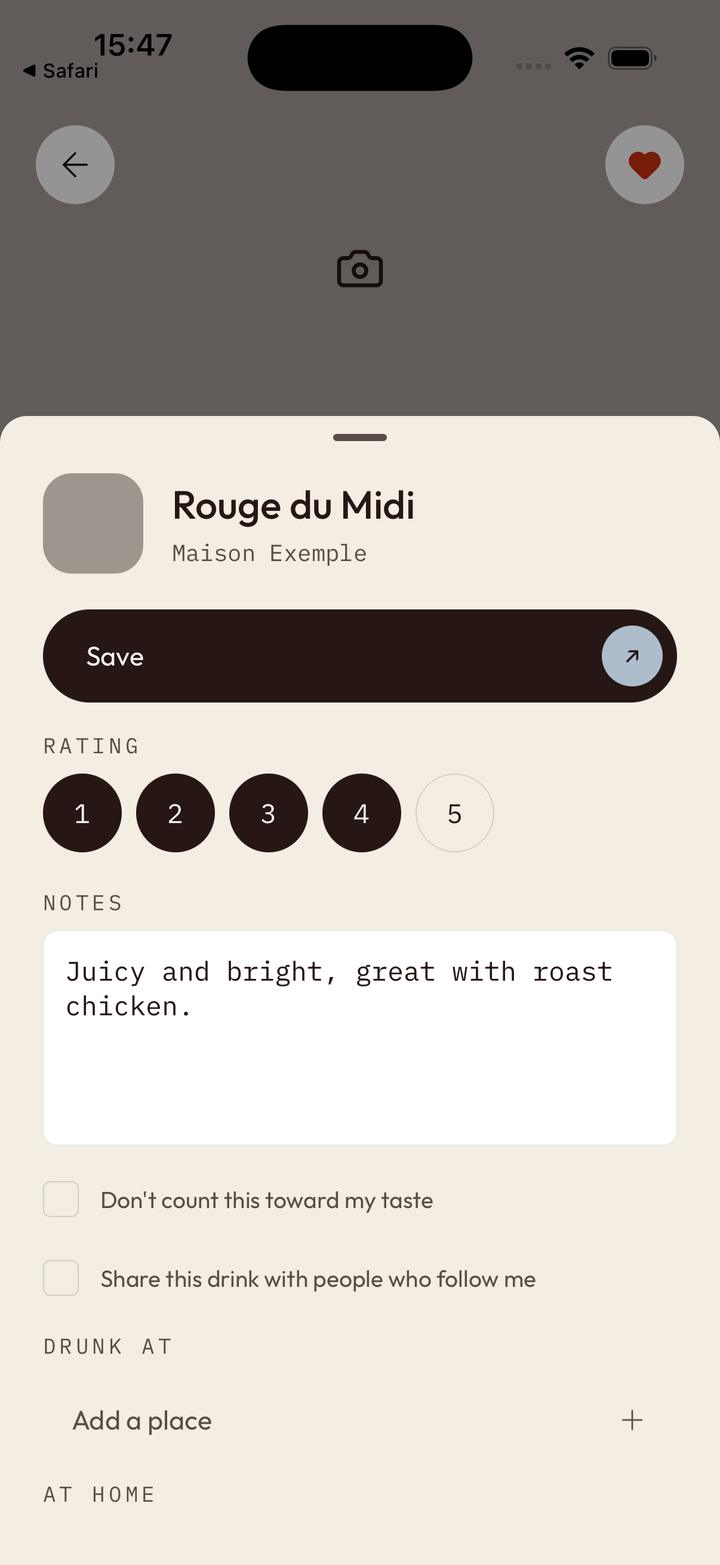
How was it?
- Give it 1 to 5. If you share the tasting, your followers see it too.
- What you thought of it, in your own words.
- Tick to share this tasting with the people who follow you.
- Tap Save.
Going out
Find Where To Drink
Wine bars, restaurants and shops near you, and where the wines you like are poured.
-
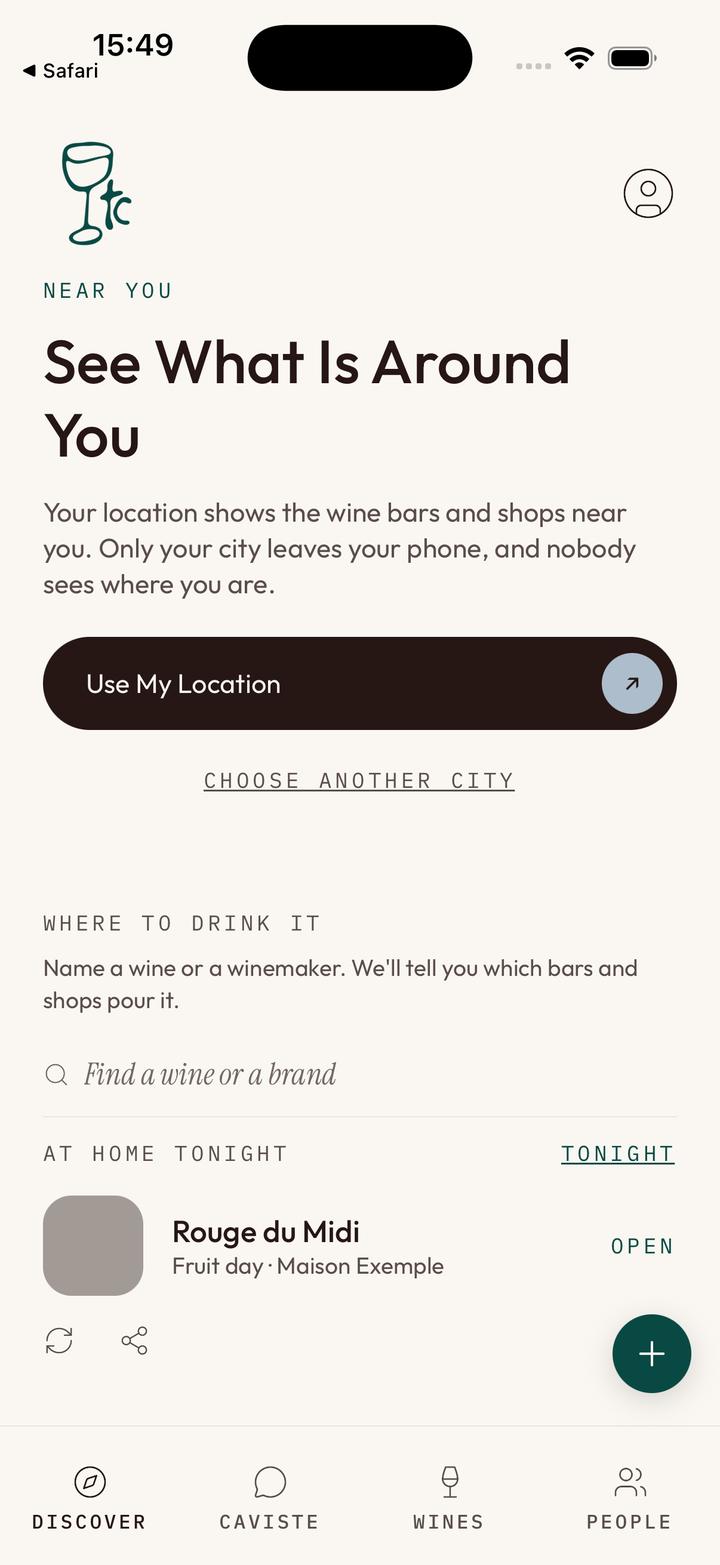
Discover
Your home screen.
- Use your location to see places near you. Only your city leaves your phone.
- Or choose a city yourself.
- Name a wine or a winemaker to find who pours it.
- A bottle from home, picked for tonight.
-
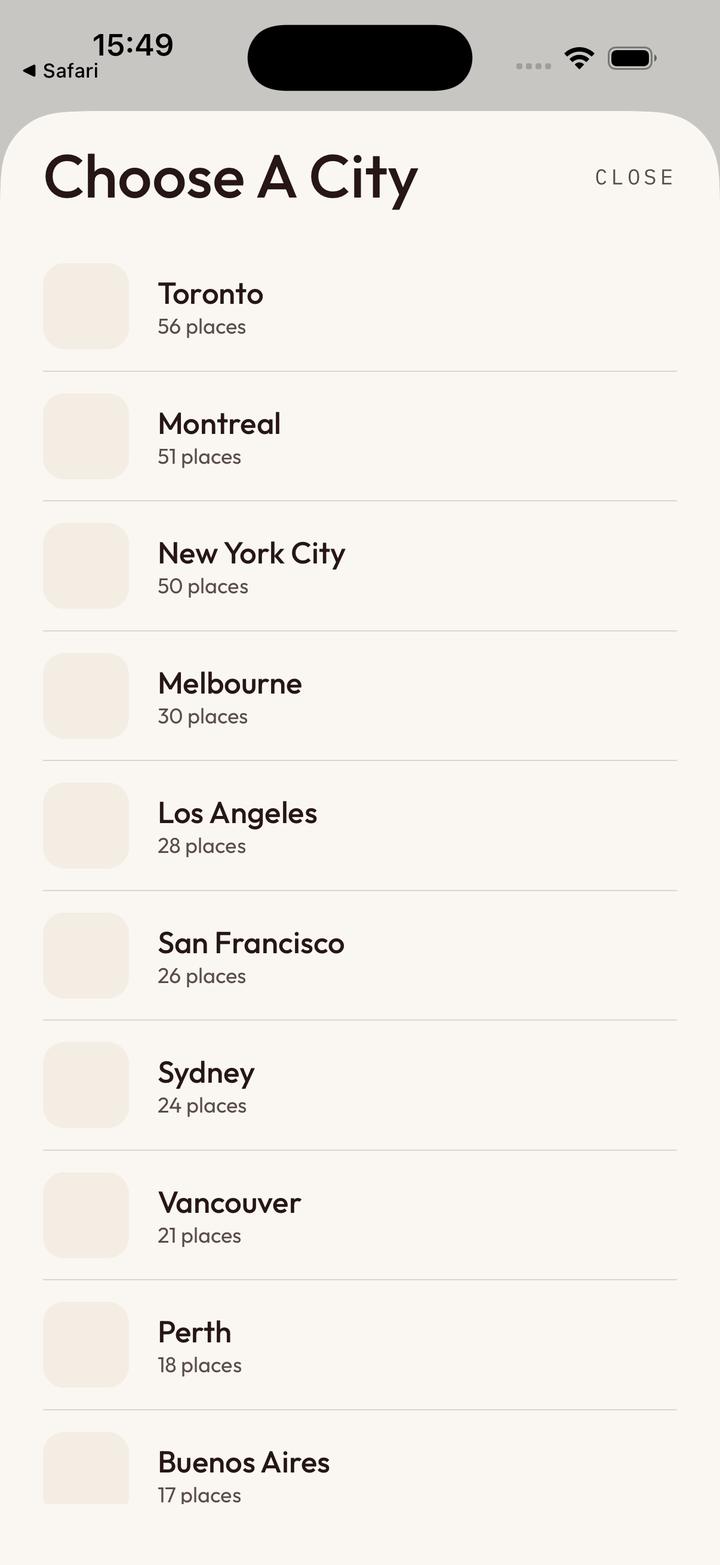
Choose a city
- Tap a city to see its places.
-
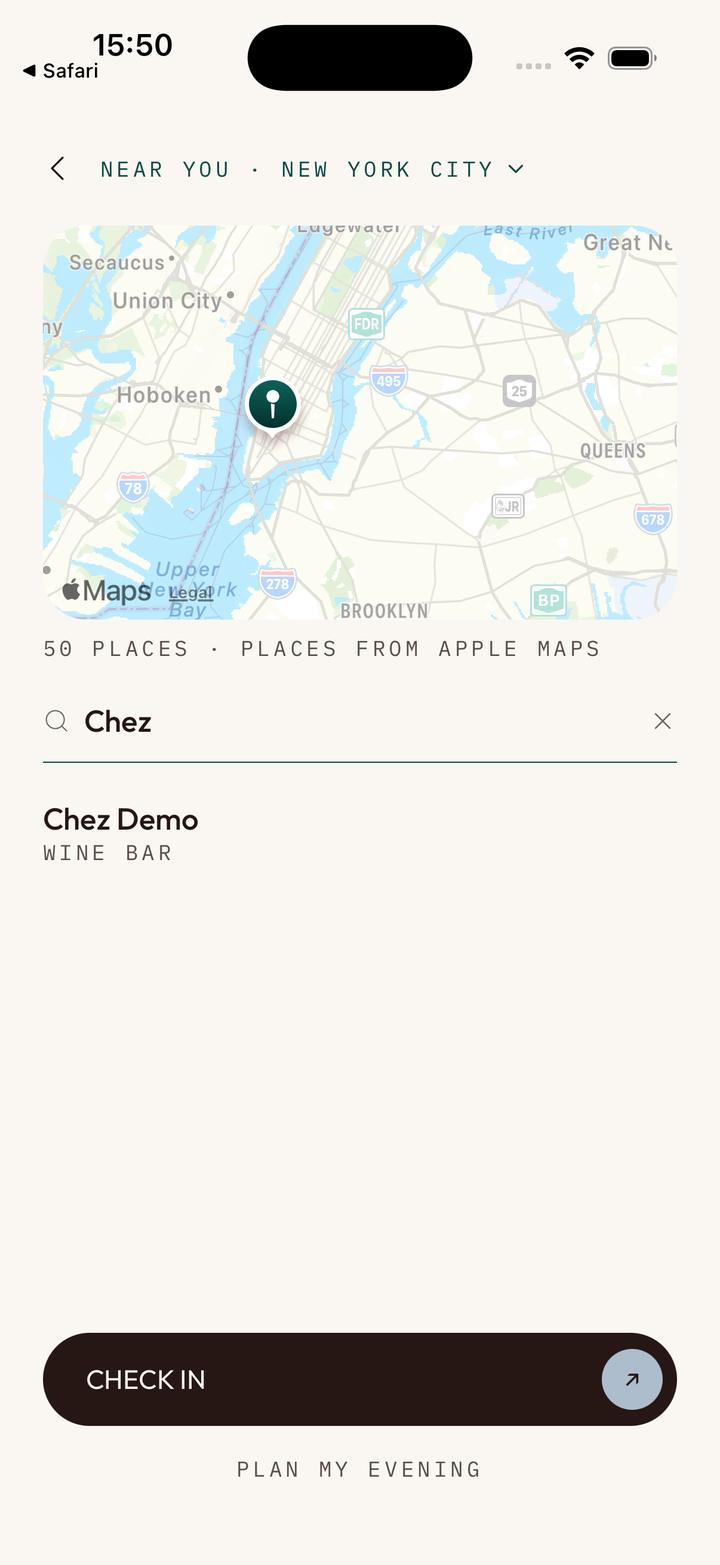
The places
The map shows each one.
- Search by name.
- Tap a place to open it.
- Check In where you are.
- Plan My Evening: three places close together.
-
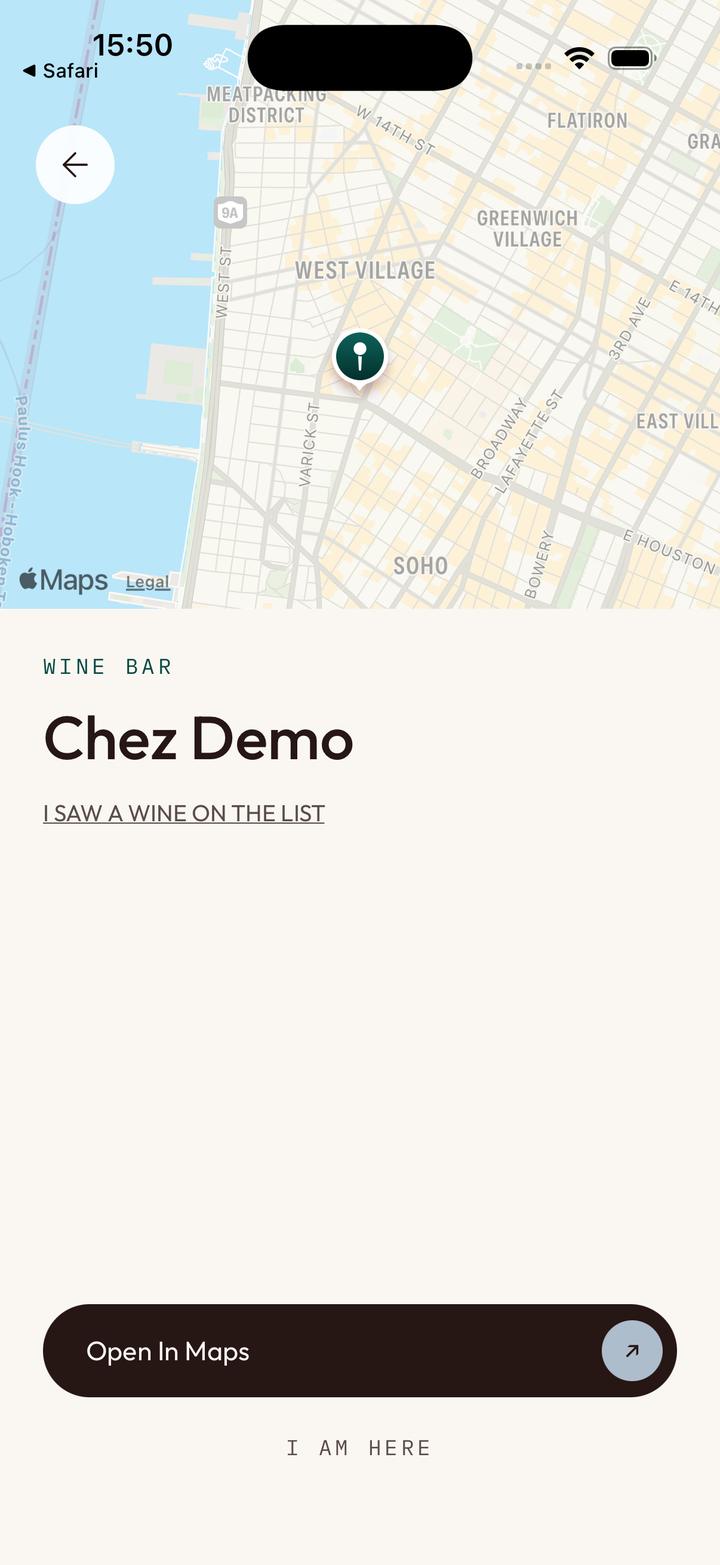
A place
- What kind of place it is, and its name.
- Saw a wine on their list? Tell us, so others can find it.
- Get directions.
- I am here: check in.
-
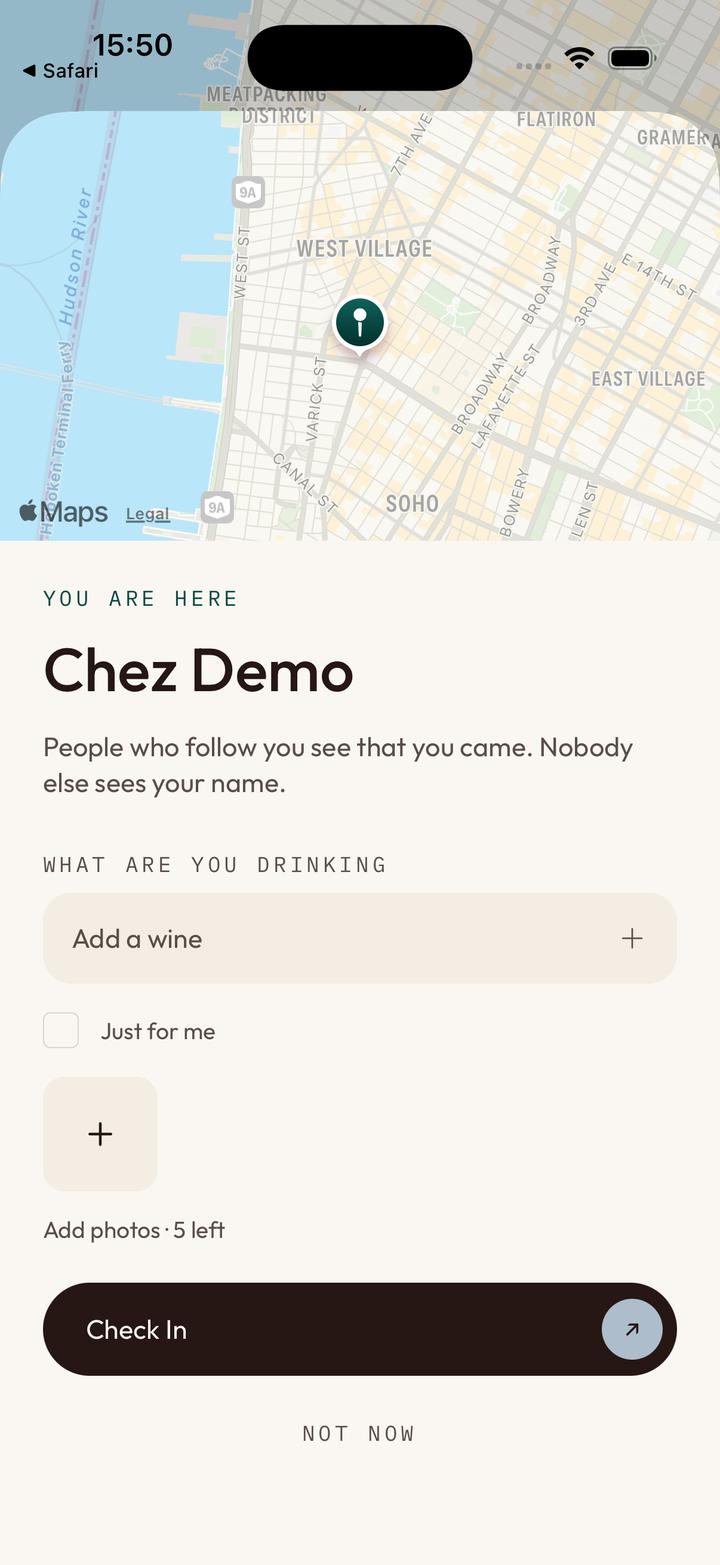
Check in
People who follow you see that you came. Nobody else sees your name.
- Add what you are drinking.
- Tick to keep this visit to yourself.
- Add up to five photos.
- Tap Check In.
-
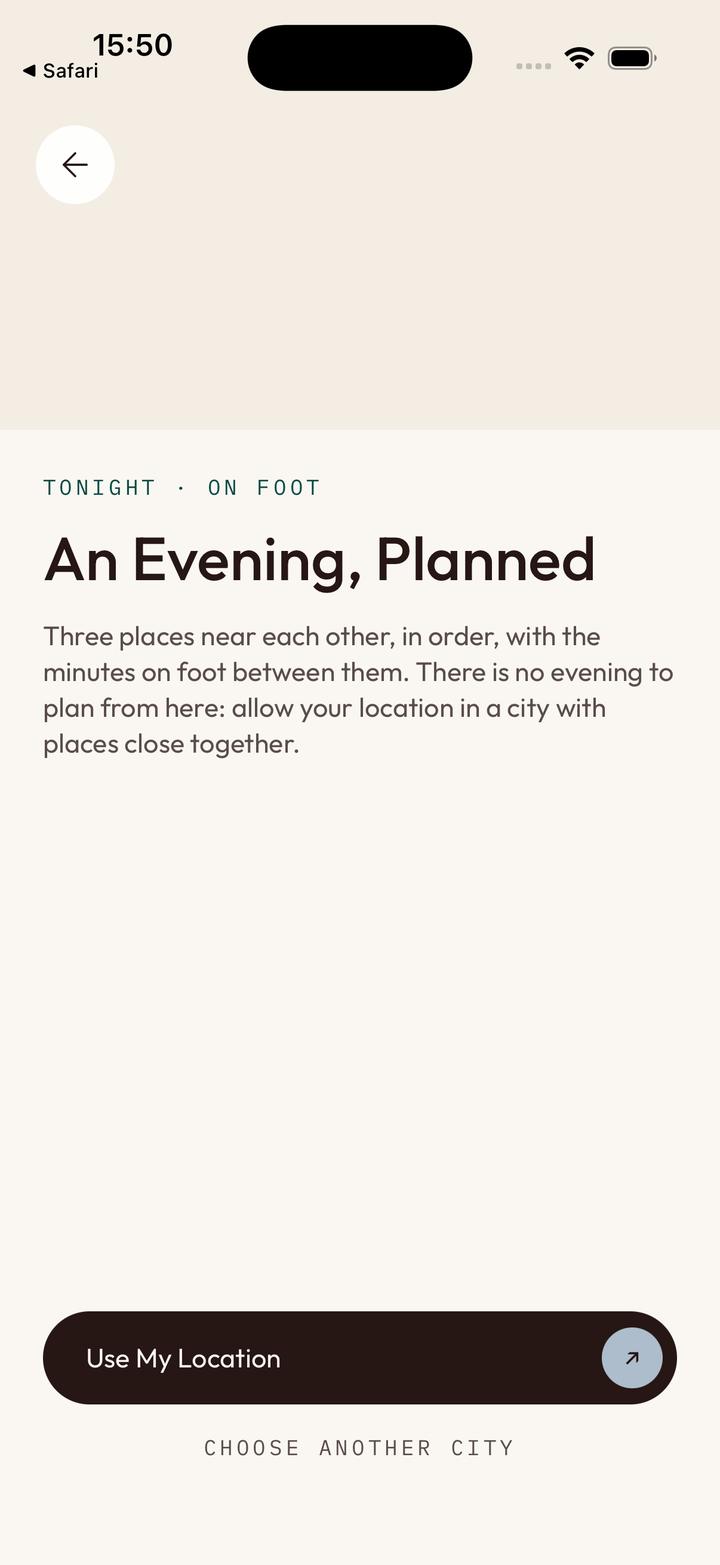
Plan your evening
Three places near each other, in order, with the minutes on foot between them.
- Use your location,
- or choose a city.
Caviste
Ask Caviste
Caviste is the app’s sommelier. Ask it anything about wine.
-
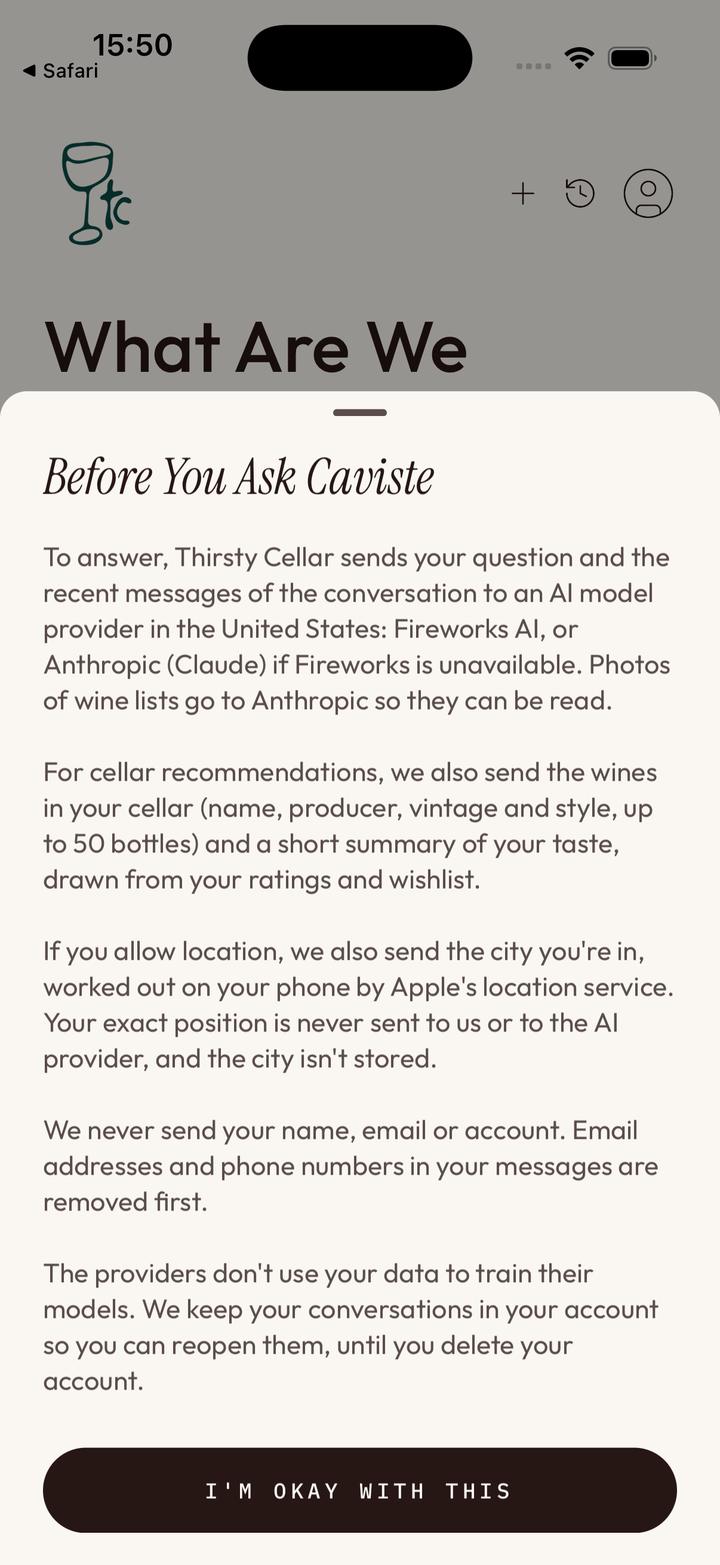
The first time
Before your first question, Caviste tells you what it sends and where.
- Agree, and ask away. You can turn Caviste off at any time in Privacy.
-
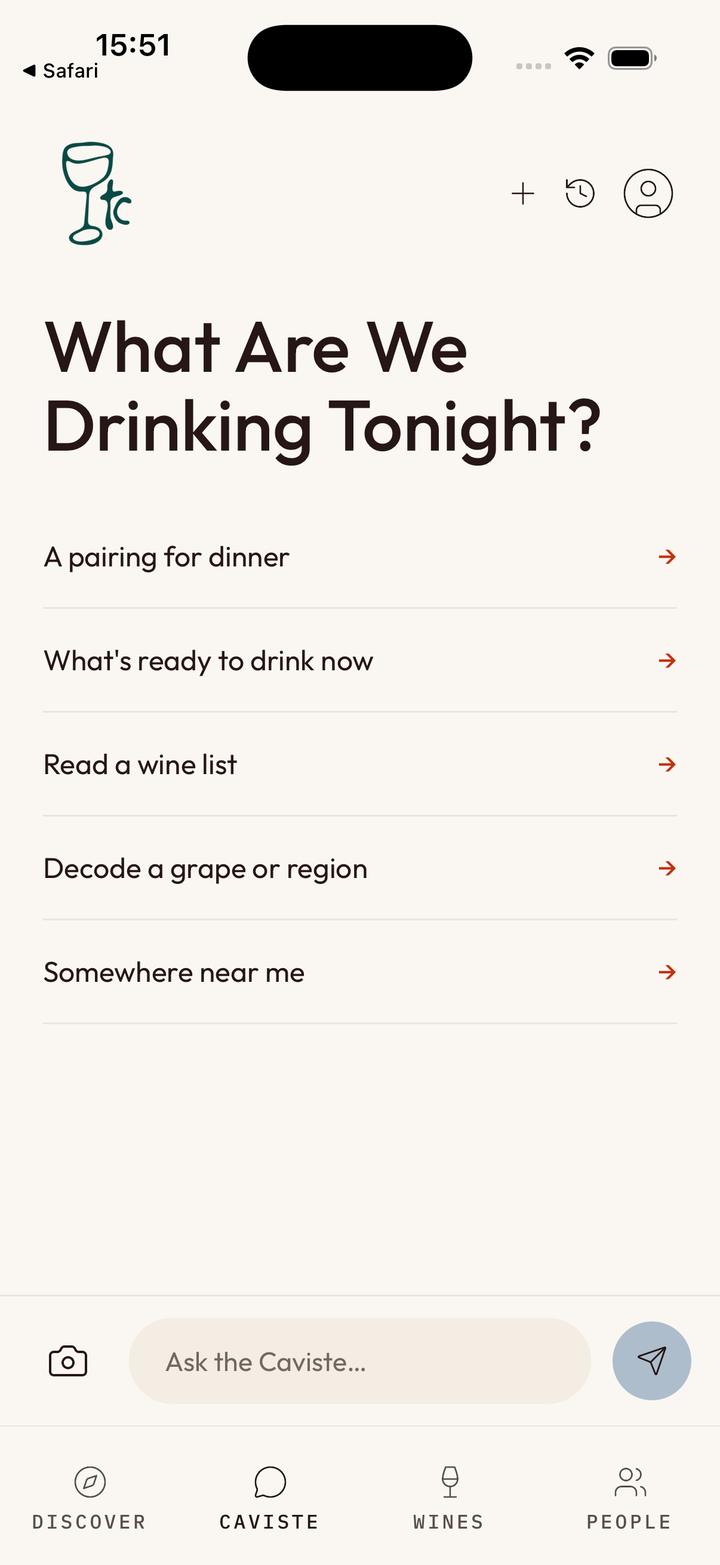
Ask
- Start with an idea: a pairing, what to open, a wine list, a grape or a region.
- Or ask in your own words.
- Take a photo of a wine list and Caviste reads it.
- Your past conversations.
-
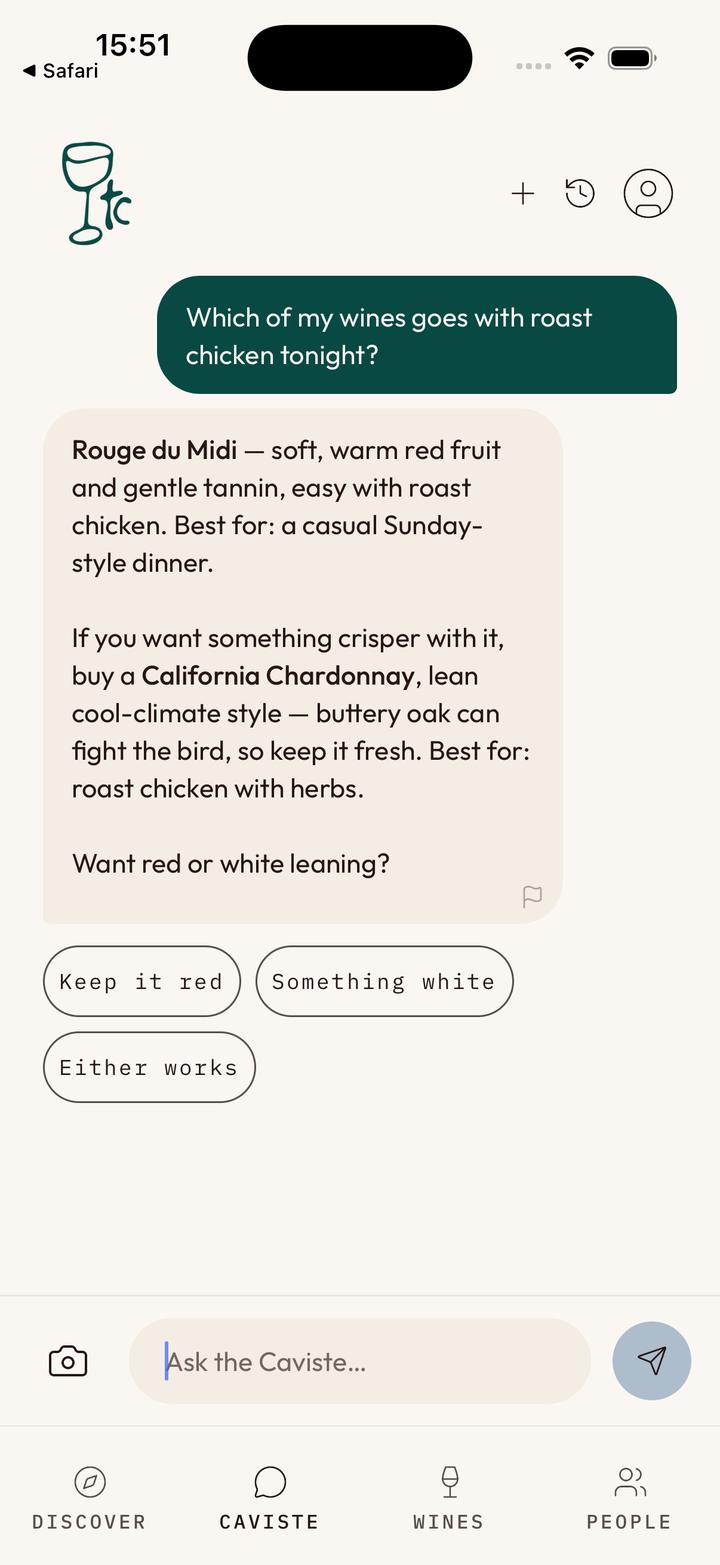
The answer
- Your question.
- Caviste picks from your own wines first, then ideas to buy.
- Tap a choice to go further.
- Something wrong in an answer? Report it with the flag.
People
Follow Your Friends
See what the people you follow love, and where they go.
-
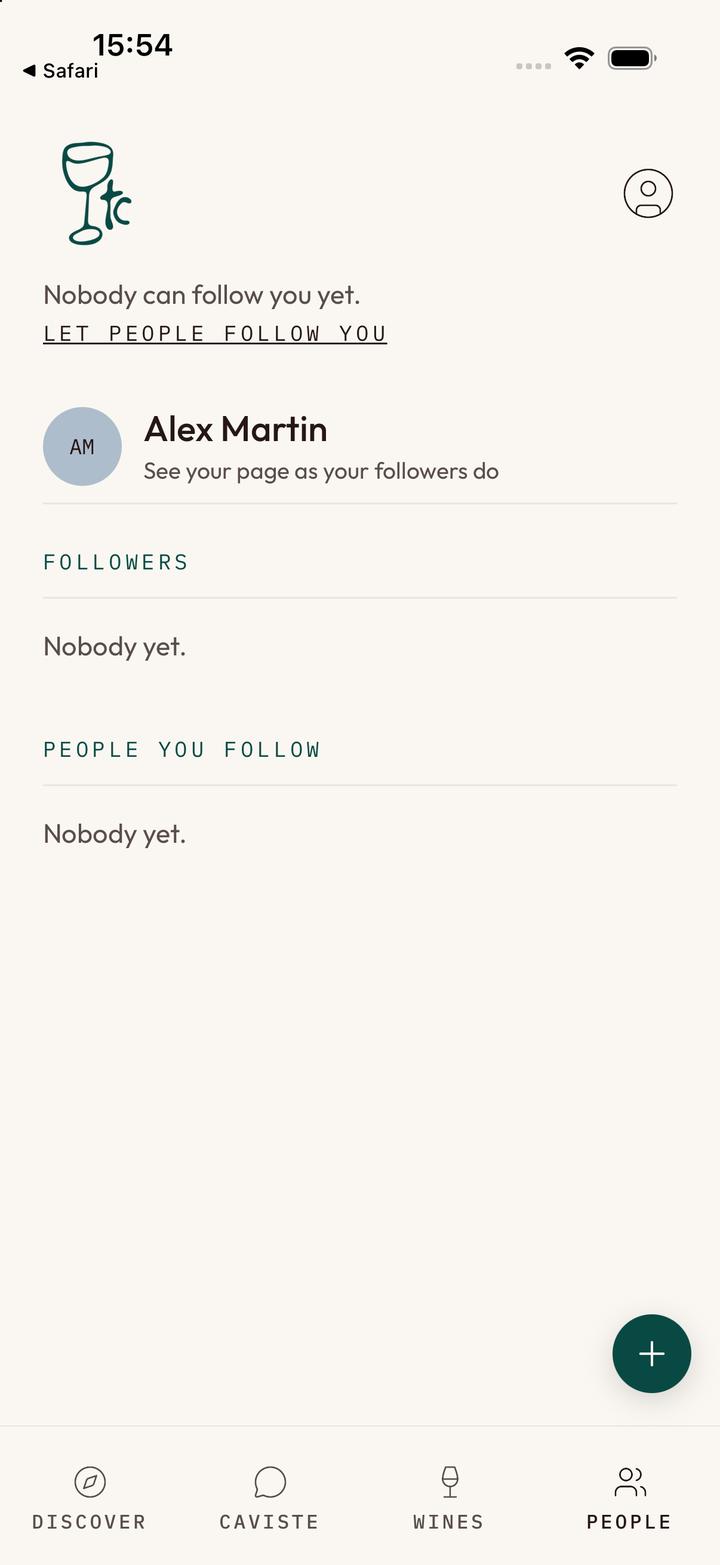
People
- Let people follow you. The first time, the app tells you what they will see; tap I agree.
- See your page as your followers see it.
- Your followers, and the people you follow.
- Add someone.
-
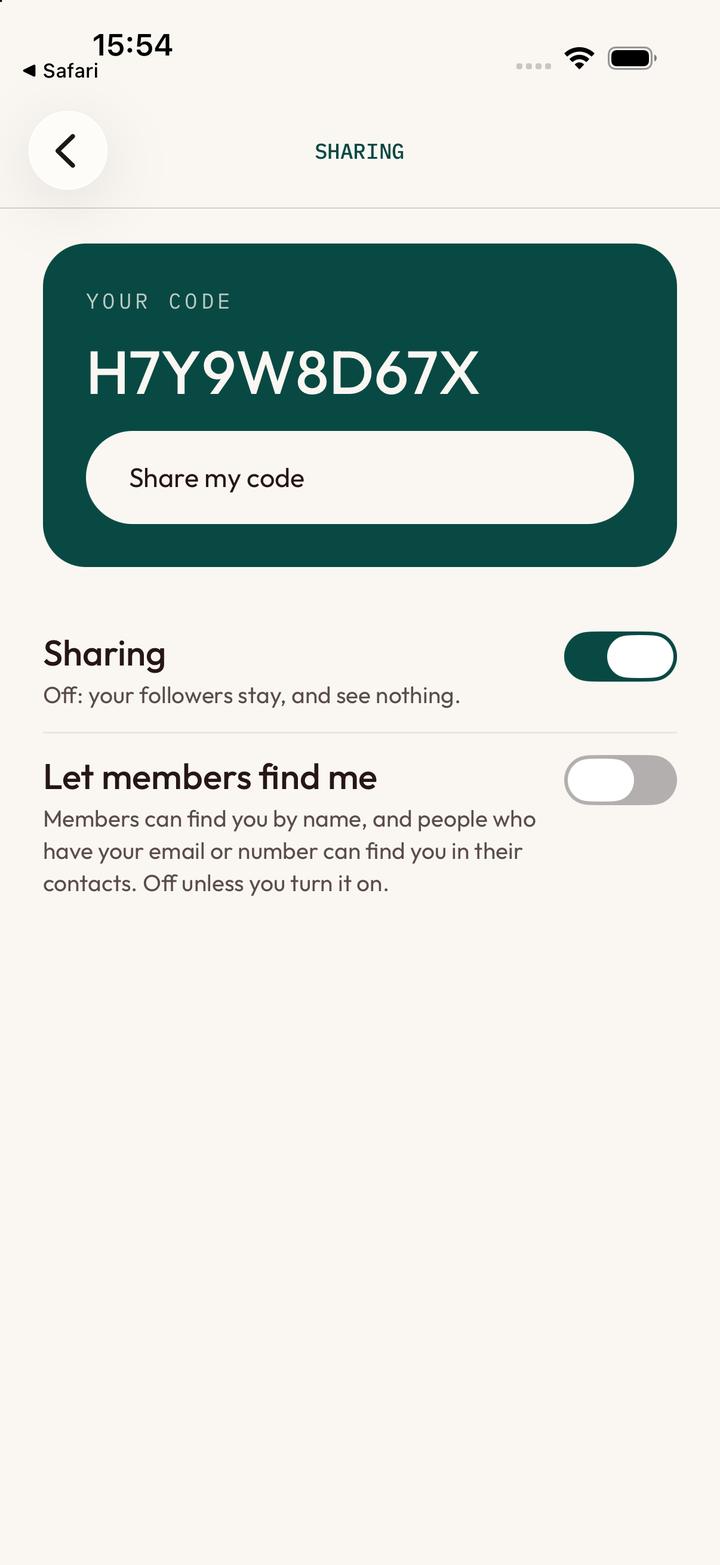
Your code
In Profile, then Sharing.
- Your code. Anyone who has it can follow you.
- Send it to a friend.
- Turn sharing off: your followers stay, and see nothing.
- Let members find you by name. Off unless you turn it on.
-
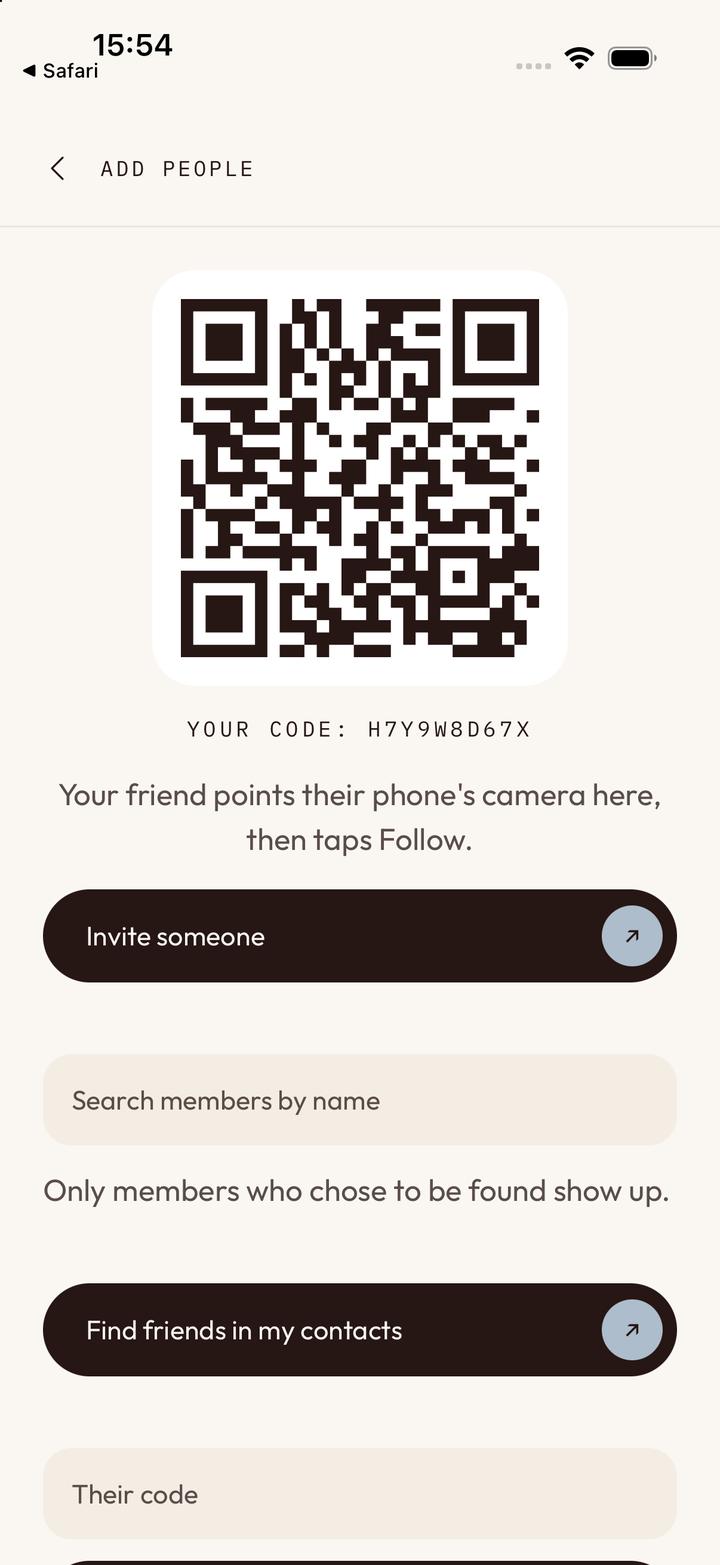
Add people
Or type a friend’s code at the bottom of this screen.
- Your friend points their camera here, then taps Follow.
- Invite someone who is not on the app yet.
- Search members by name.
- Find friends in your contacts.
Your account
Your Profile
Tap the round icon at the top right of any screen.
-
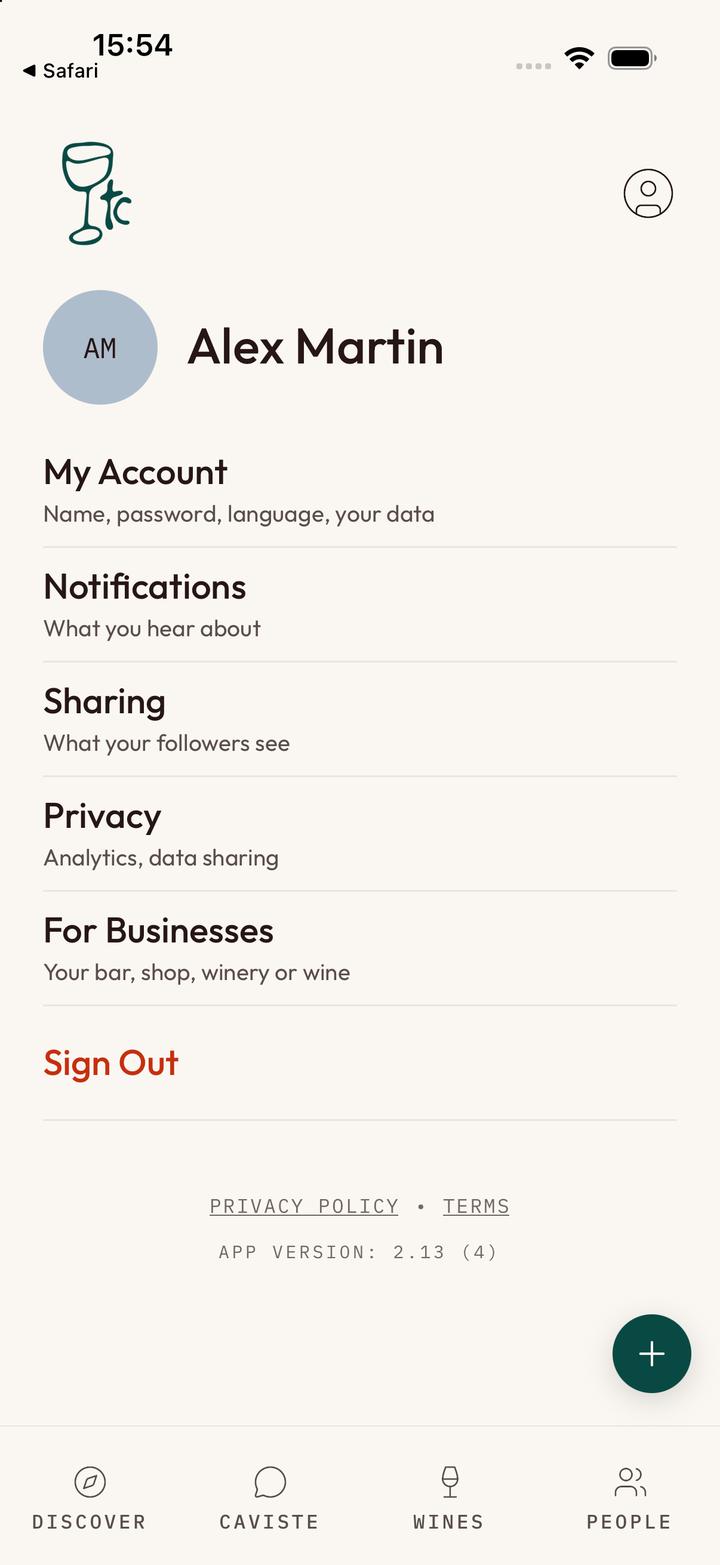
Profile
- Your name, password, language and data.
- What your followers see.
- Analytics and the AI features.
- Sign Out.
-
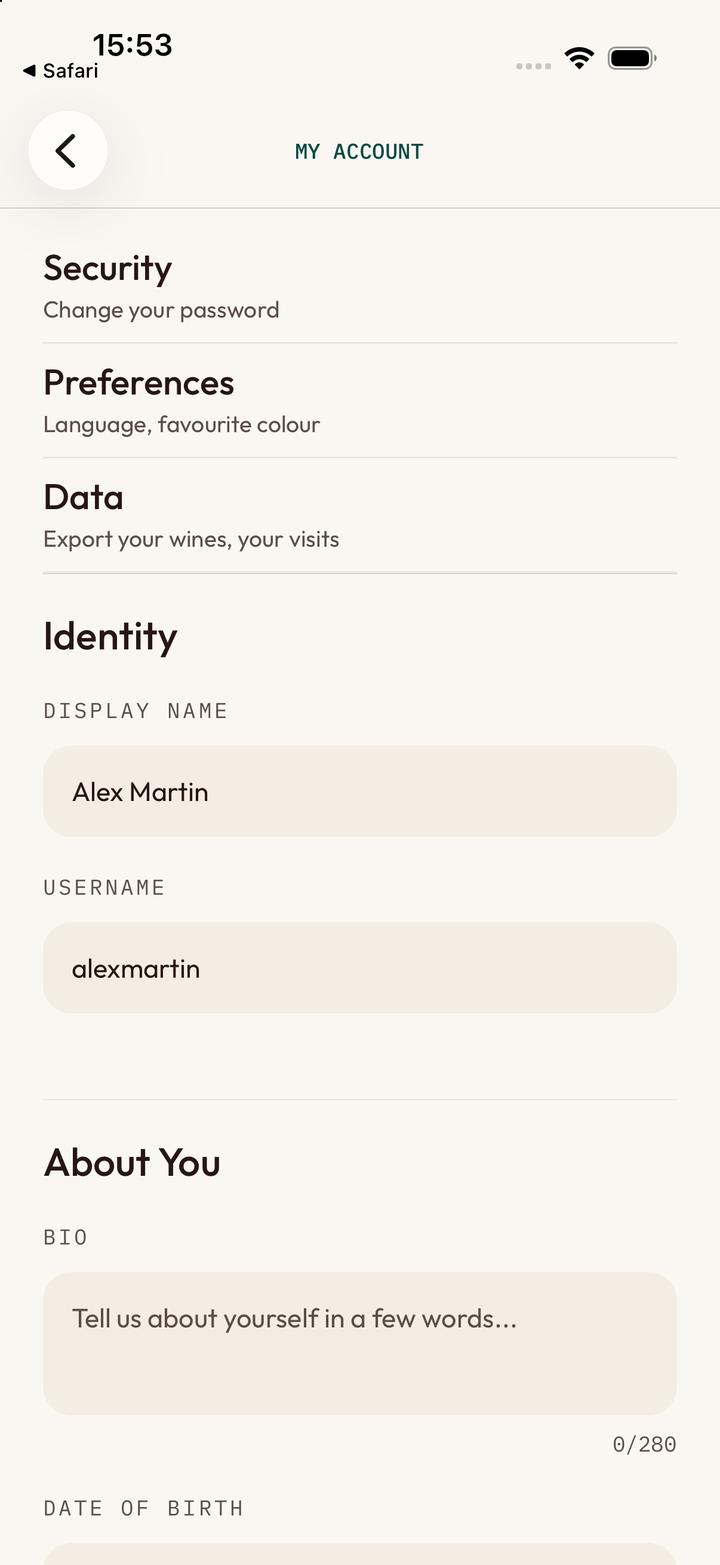
My account
At the bottom of this screen, Delete My Account deletes it for good.
- Language and display.
- Export your wines and your visits.
- The name people see.
- Your username.
-
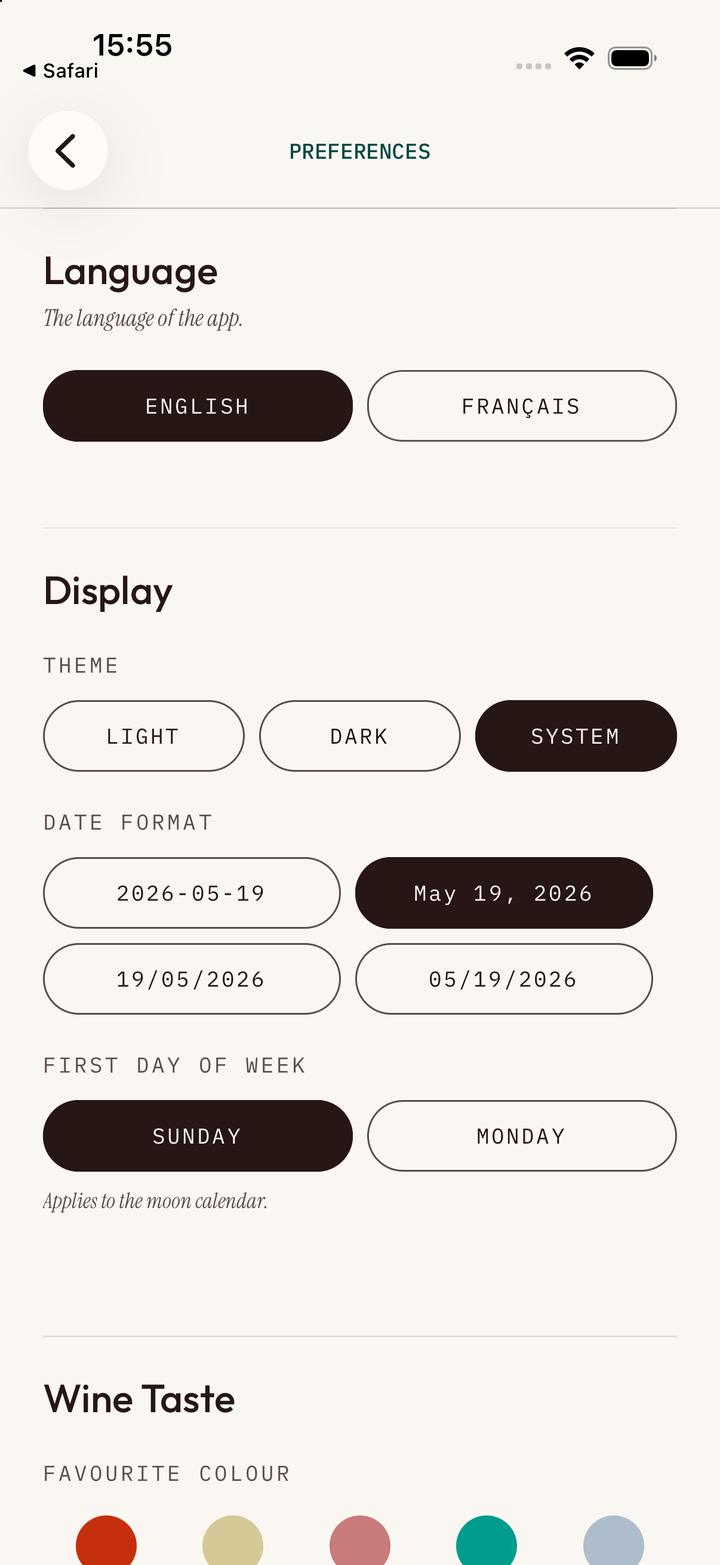
Preferences
- English or French.
- Light, dark, or like your phone.
- How dates are written.
-
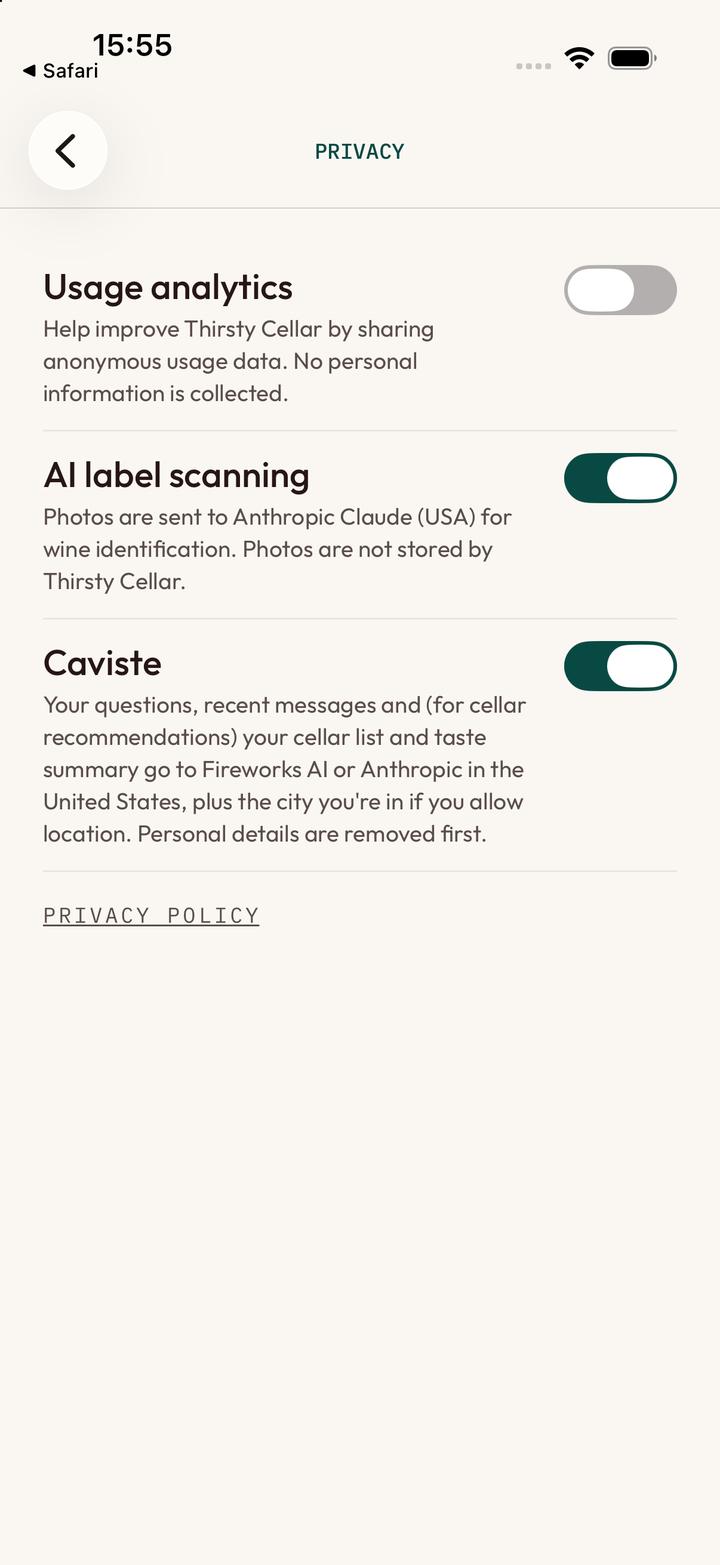
Privacy
- Anonymous usage statistics. Off unless you turn it on.
- Label scanning by AI.
- Caviste.
- The privacy policy.
Questions
Write To Us
Something does not work, or does not match what you see here? Write to us with your phone model and a screenshot.