
For bars, restaurants, shops, wineries and wine brands
The Business Guide
How to claim your place or your wine brand, keep its page true, and what members see in the app. It costs nothing.
Follow the numbers: each one on the screen matches the line with the same number. These screens come from Chez Demo, our test bar, and Vins Exemple, a made-up wine brand. Every wine in them is invented.
Step one
Claim Your Place
Your bar, restaurant, shop or winery may already be on the map in the app. Claiming it lets you write its page.
-
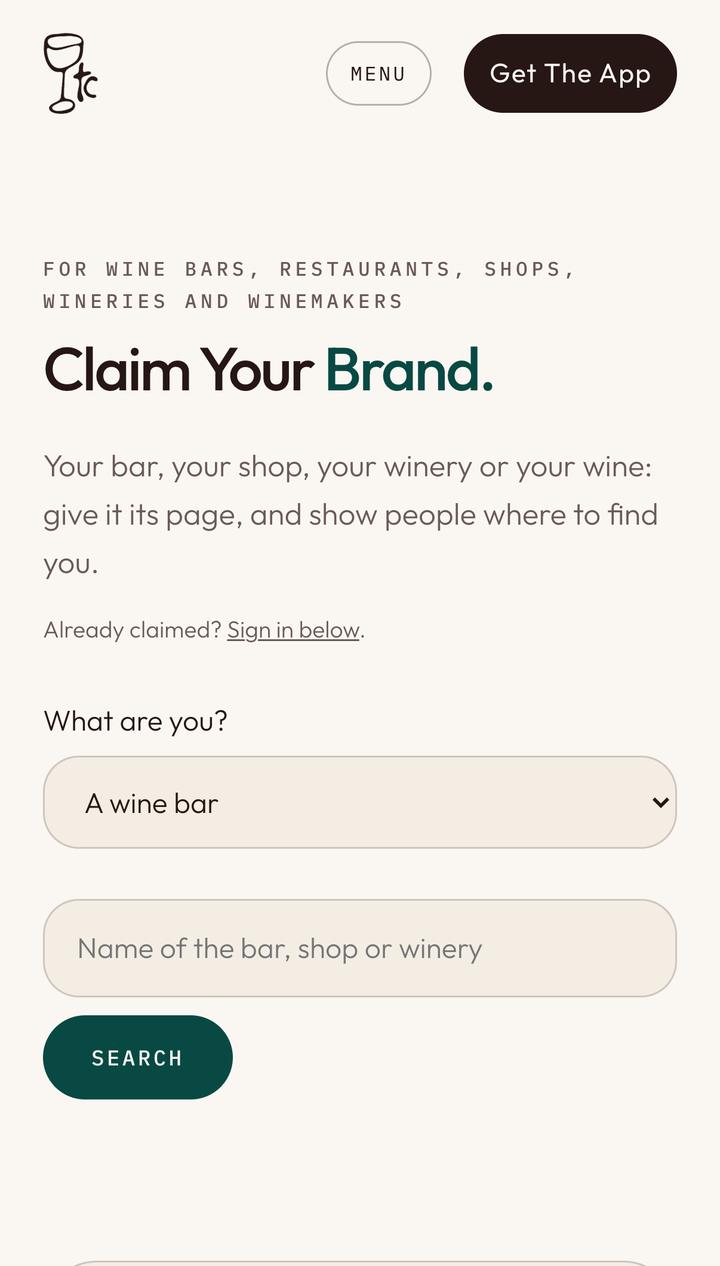
Say what you are
Go to thirstyc.com/claim.
- Choose what you are: a wine bar, a restaurant, a wine shop, a winery or an import agency.
-
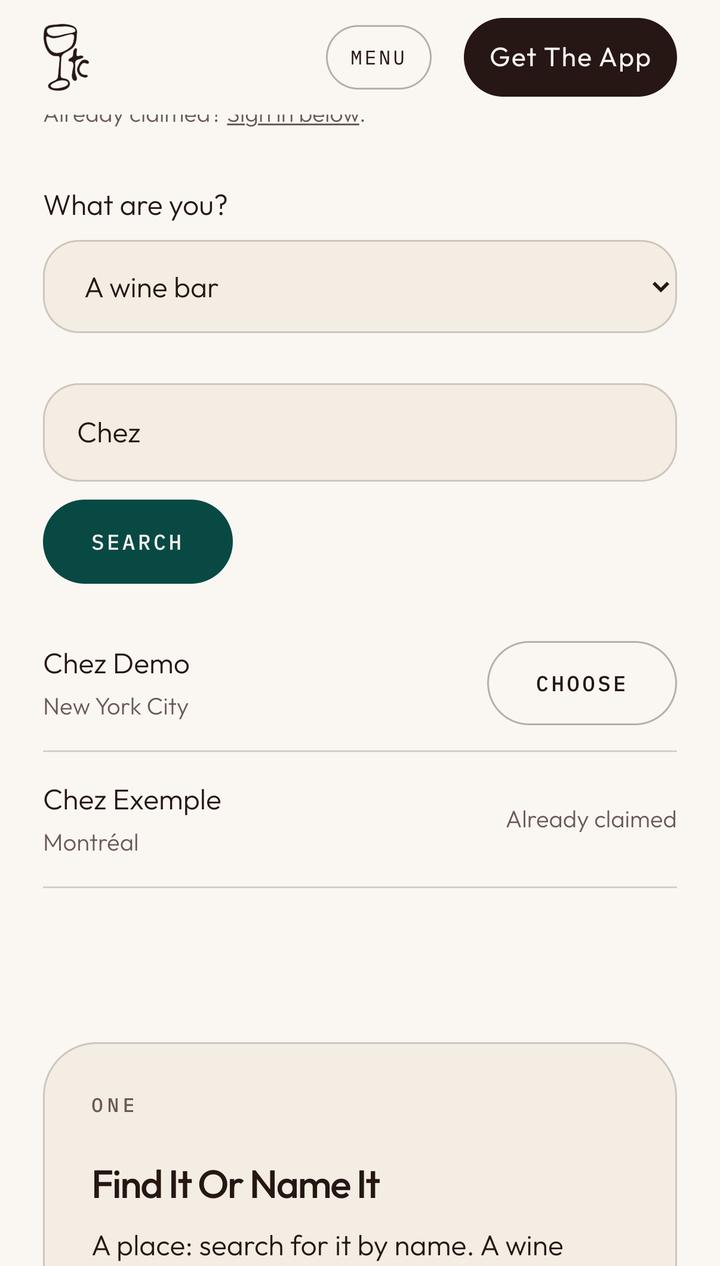
Find your place
- Type at least three letters of its name.
- Tap Search.
- Tap Choose next to yours.
- Already claimed means the place has an owner. If it is yours, write to us.
-
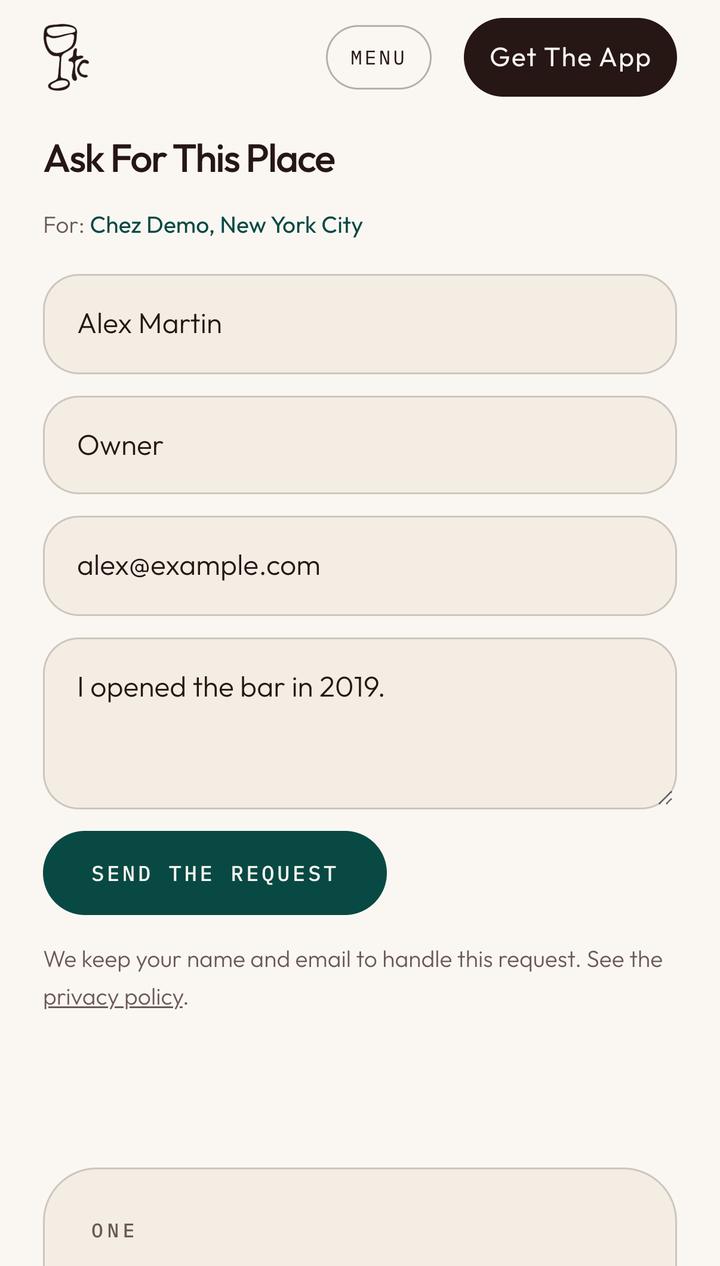
Ask for it
A word to help us check is welcome, in the last box.
- Your name.
- Your role: owner, manager…
- Your work email. We send the code there.
- Tap Send The Request.
-
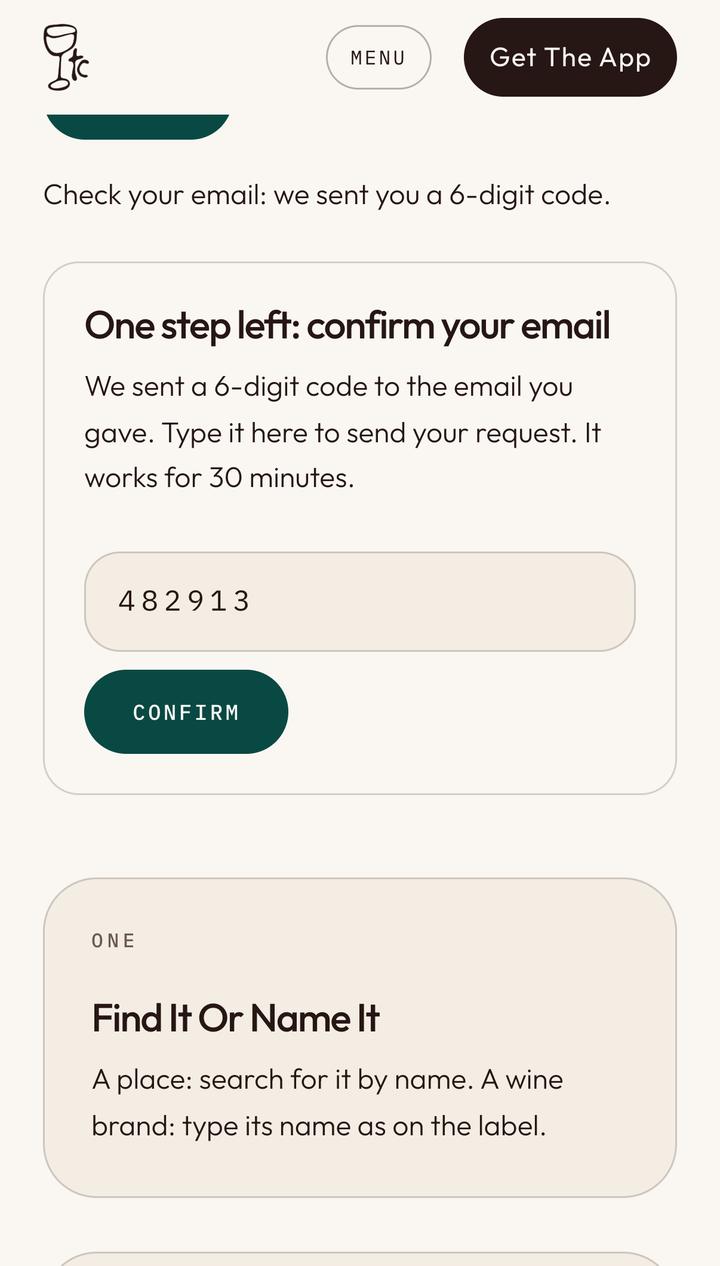
Confirm your email
- Type the 6-digit code we emailed you. It works for 30 minutes.
- Tap Confirm.
-
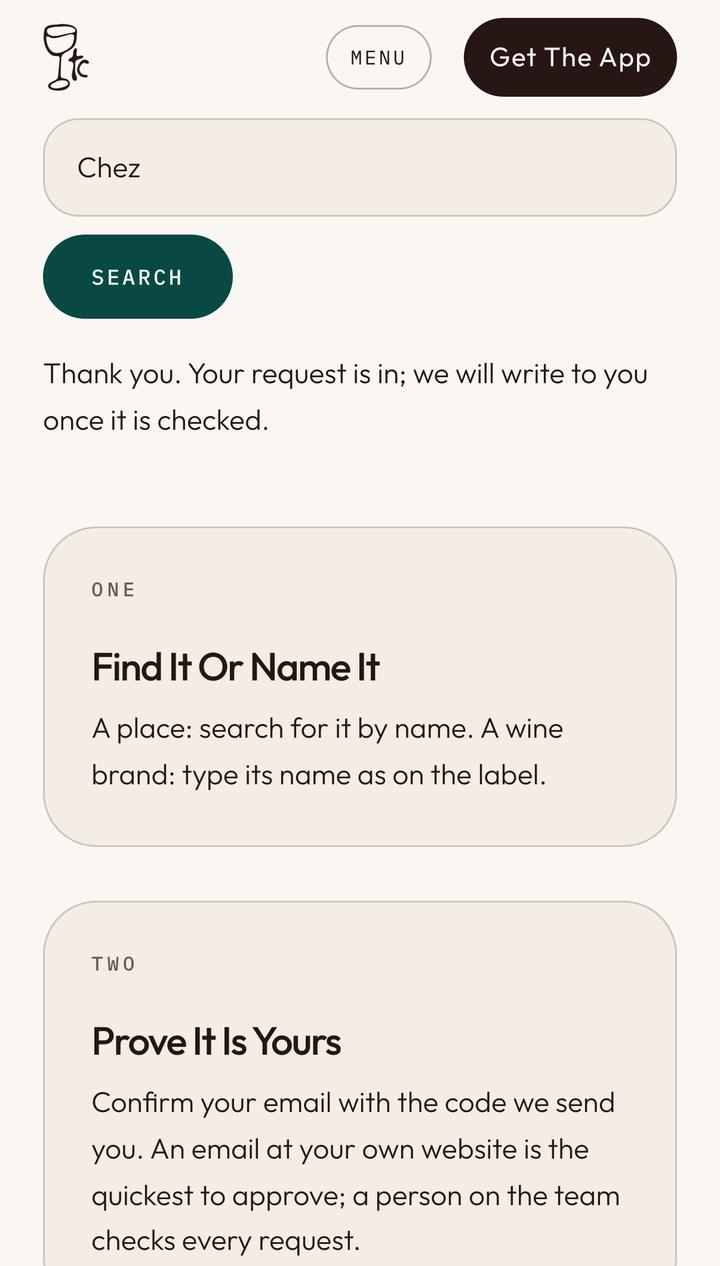
Wait for the yes
A person on our team checks every request. An email at your own website’s address is the quickest to approve.
- Your request is in. We write to you once it is done.
Wine brands
Claim Your Brand
For a wine sold under its own name, with no winery or address of its own.
-
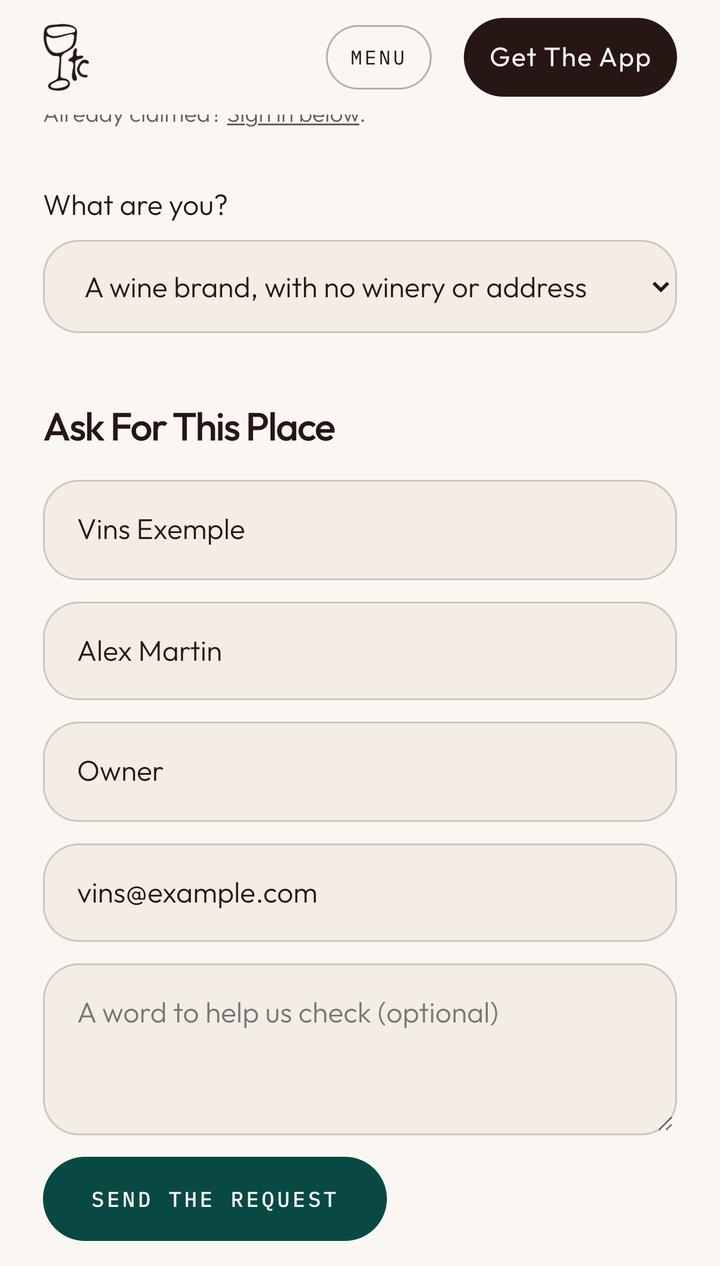
Name your brand
Same page, same steps as for a place.
- Choose A wine brand, with no winery or address.
- Type its name as it is on the label.
- Your name, your role and your work email.
- Tap Send The Request, then confirm the 6-digit code.
Once approved
Write Your Page
Everything on your page is yours to write. There is no password: we send you a link.
-
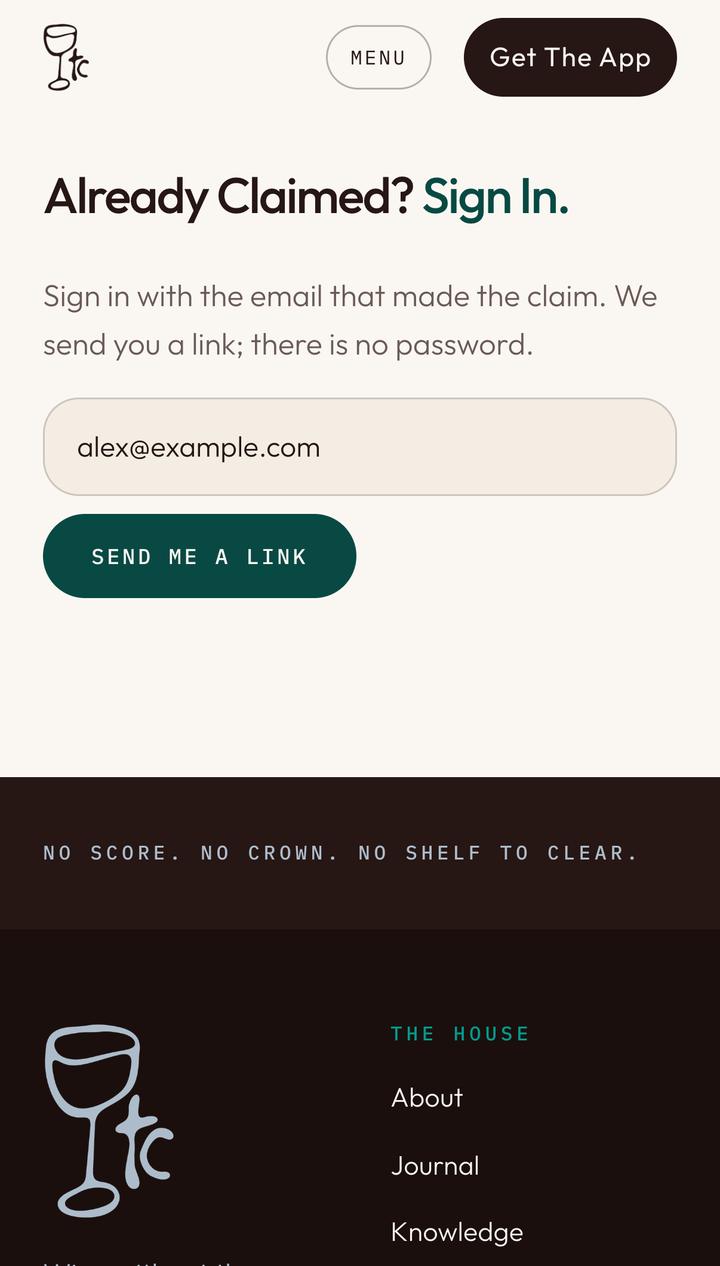
Sign in
At the bottom of thirstyc.com/claim, under Already Claimed? Sign In.
- Type the email that made the claim.
- Tap Send Me A Link.
-
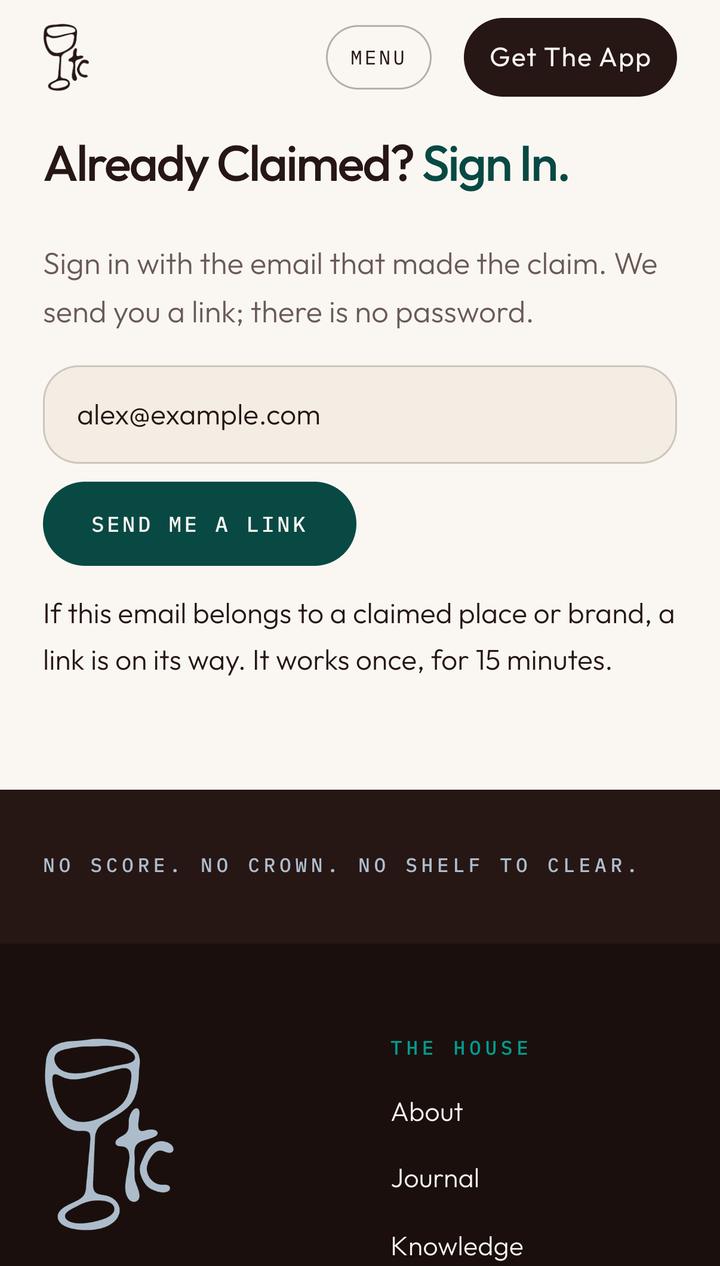
Open the link we email you
- The link is on its way. It works once, for 15 minutes, and signs you in on that phone or computer.
-
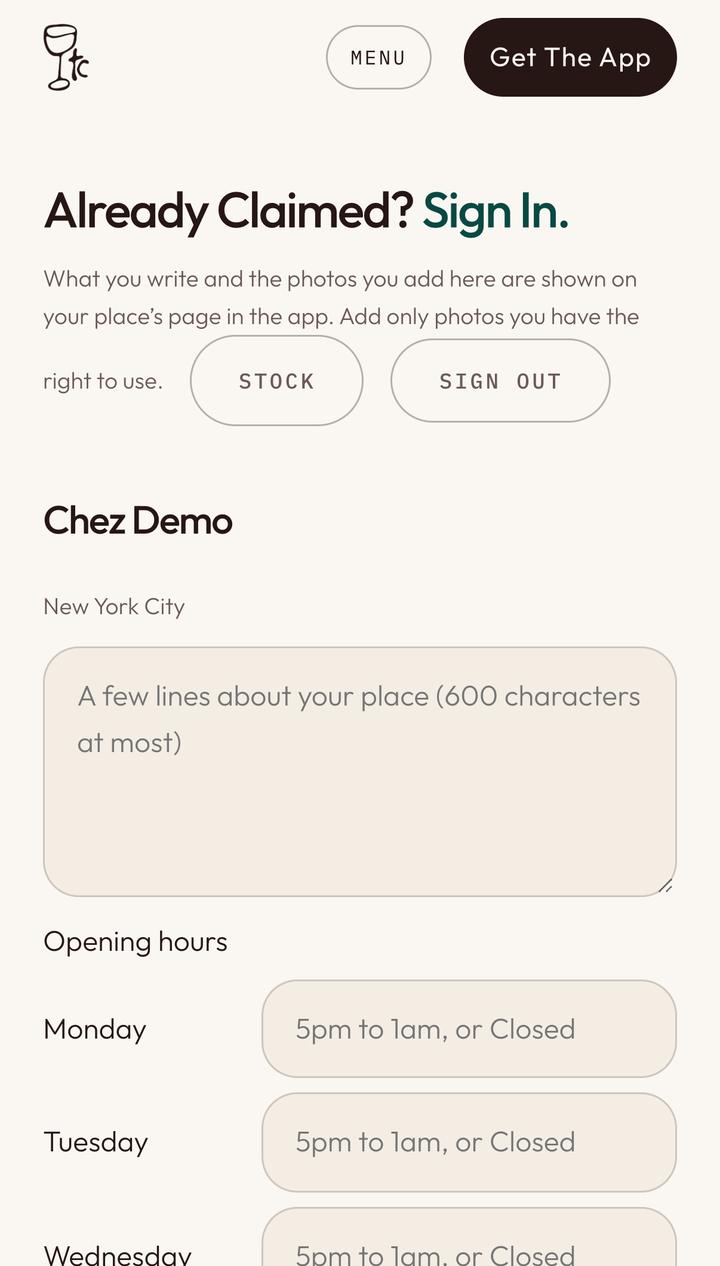
Your page
- The place you claimed. Each place or brand has its own form, and what you write shows on its page in the app.
- Sign Out when you are done on a shared computer.
-
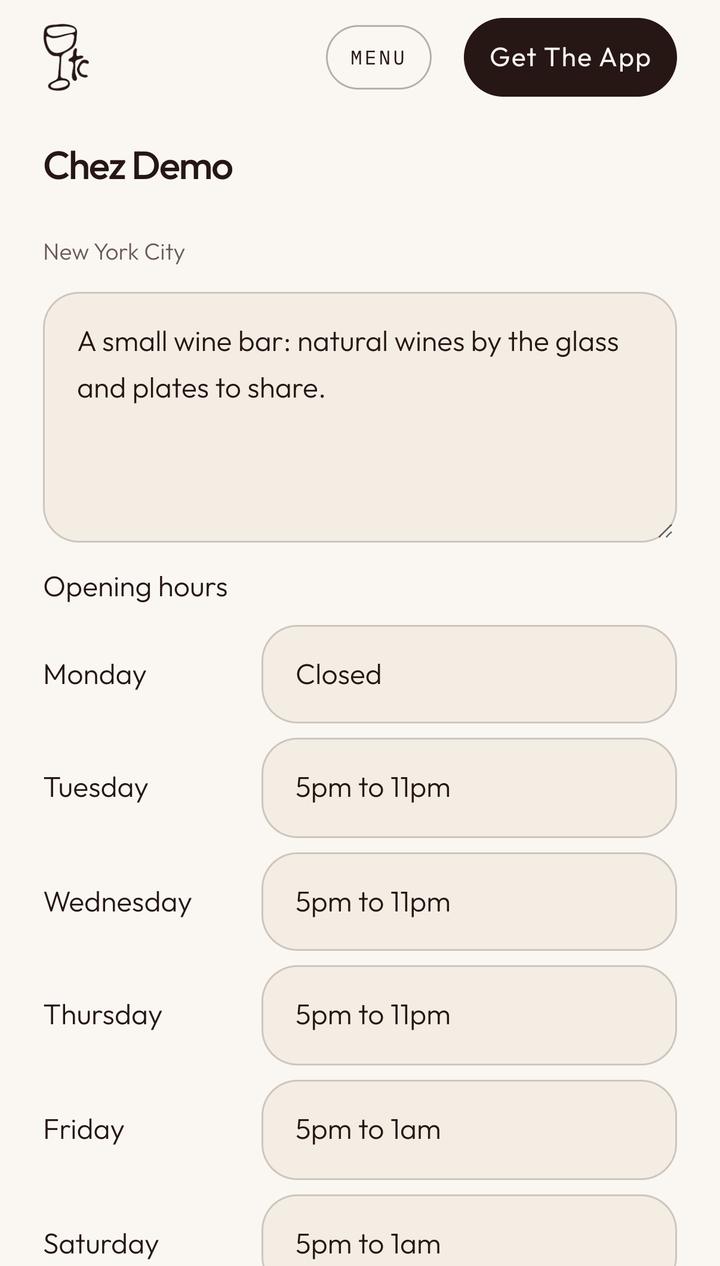
A few lines and your hours
- Say what your place is, in 600 characters at most.
- Your hours, one day a line: for example 5pm to 1am, or Closed.
-
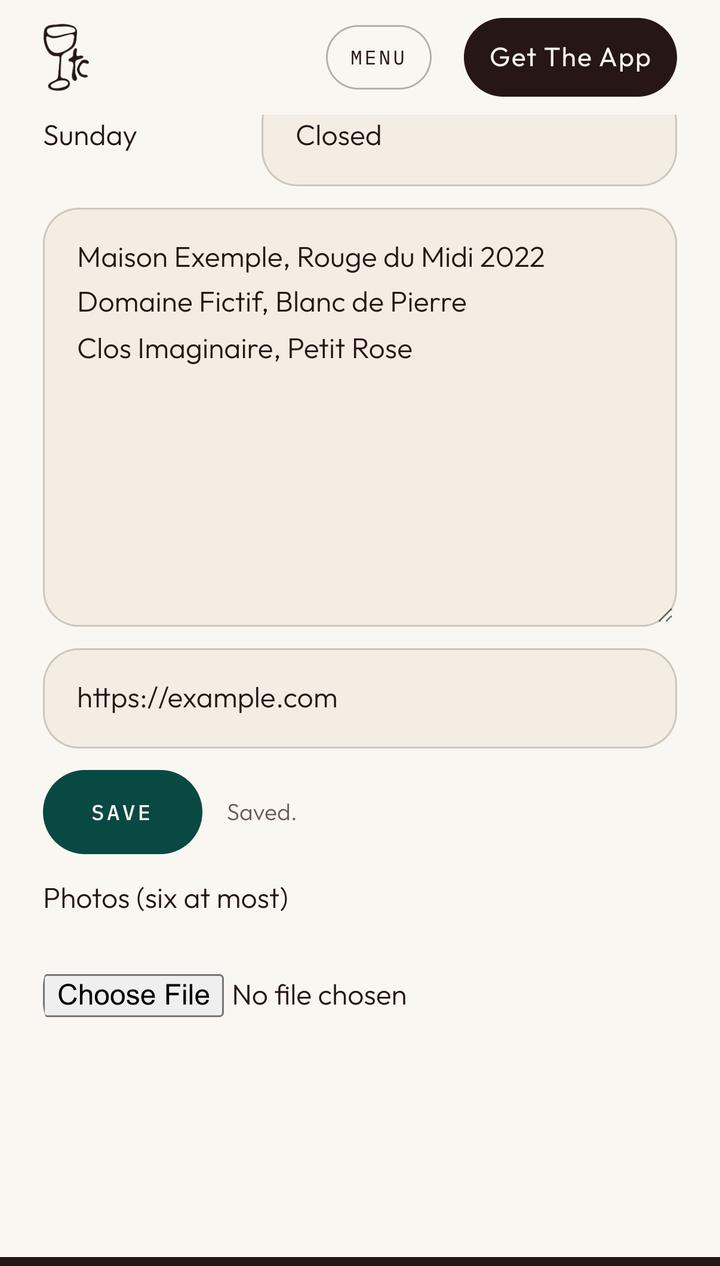
Your wine list, a link and photos
- Your wines, one a line: producer, wine, year.
- A link to your site or to book. It starts with https://.
- Tap Save. Saved. shows when it is done.
- Add up to six photos you have the right to use.
Wine brands
Your Brand’s Page
A brand’s page says who makes the wine and where to find it. Sign in the same way, with the email that claimed the brand.
-
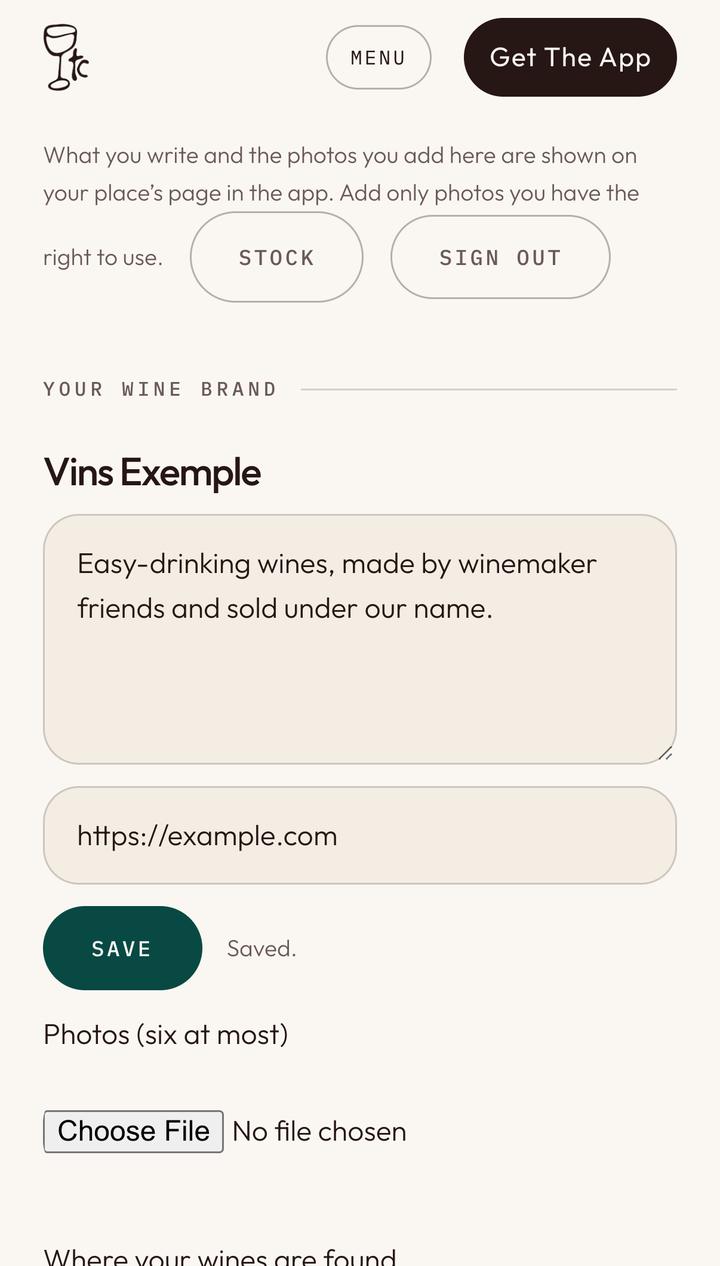
A few lines and a link
- A few lines about your wines and how they are made.
- A link to your site.
- Tap Save. Photos work as for a place.
-
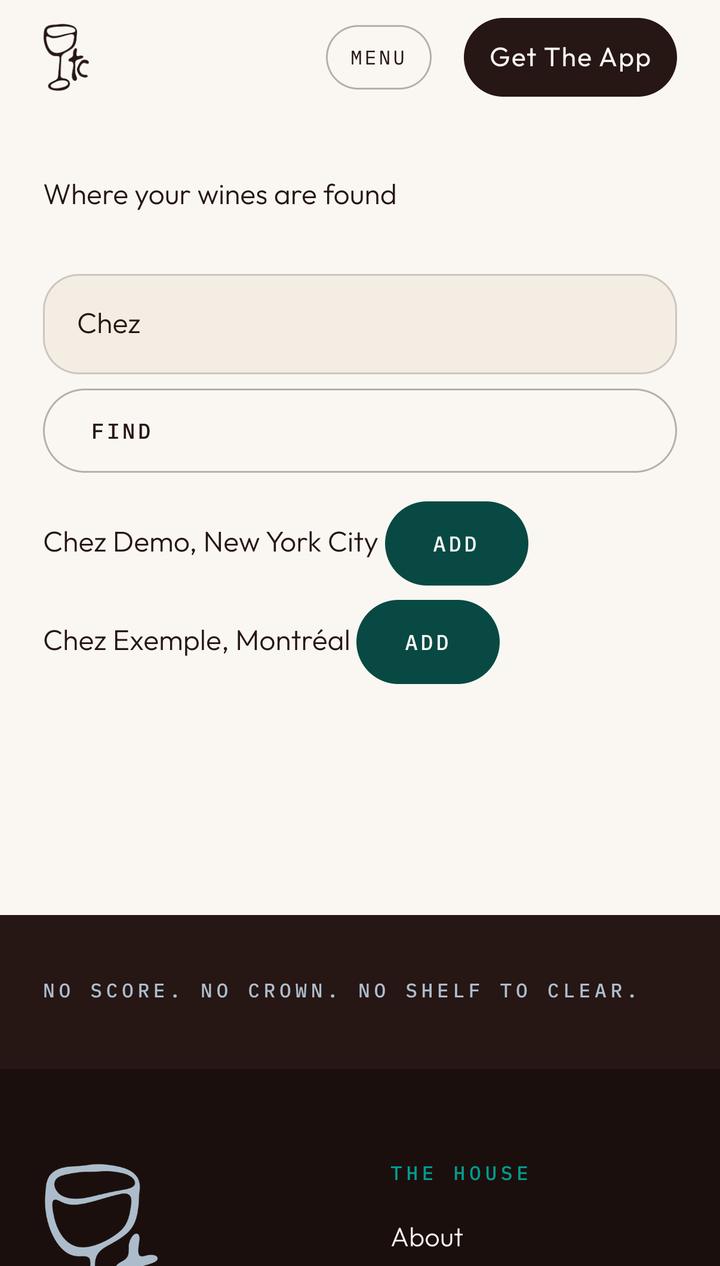
Where your wines are found
- Type the name of a bar or shop that pours or sells your wines.
- Tap Find.
- Tap Add next to the right one.
-
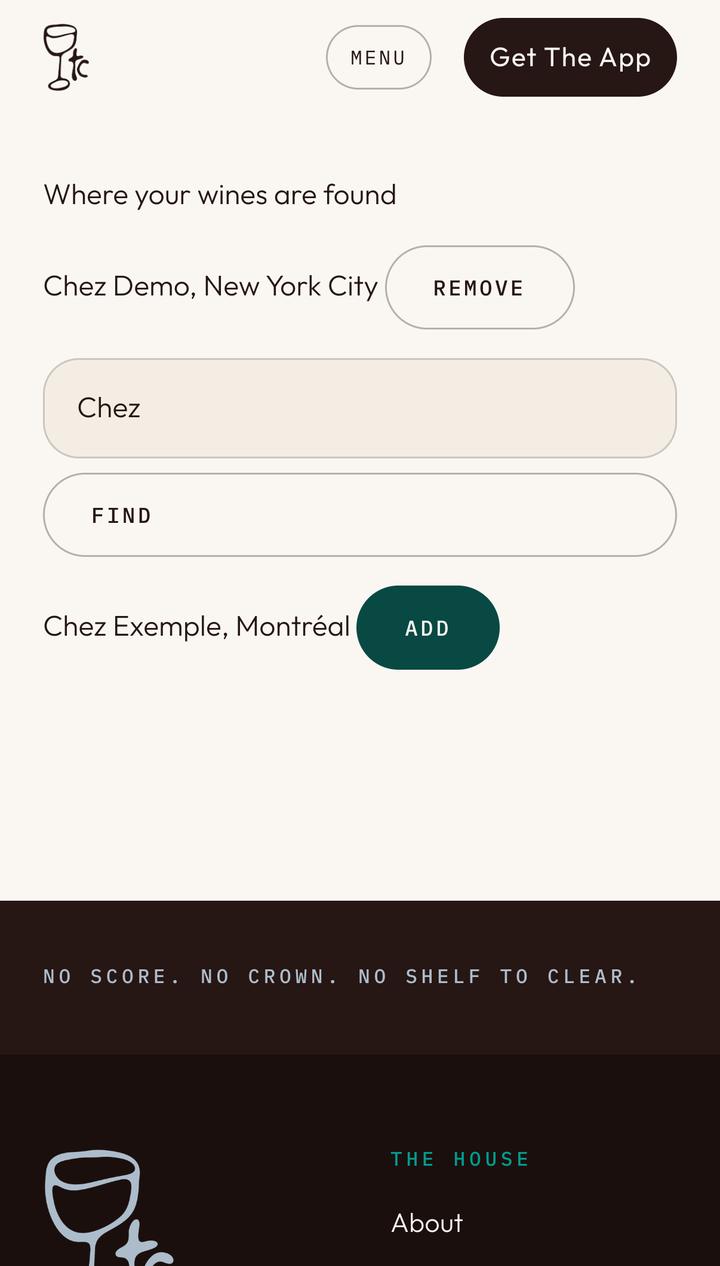
Your list of places
The places you add show on your brand’s page in the app, fifty at most. A place we cannot find can be added: write to us.
- Remove takes a place off the list.
In the app
What Members See
Members open your page from the map, from a search for a wine, or from a friend’s check-in.
-
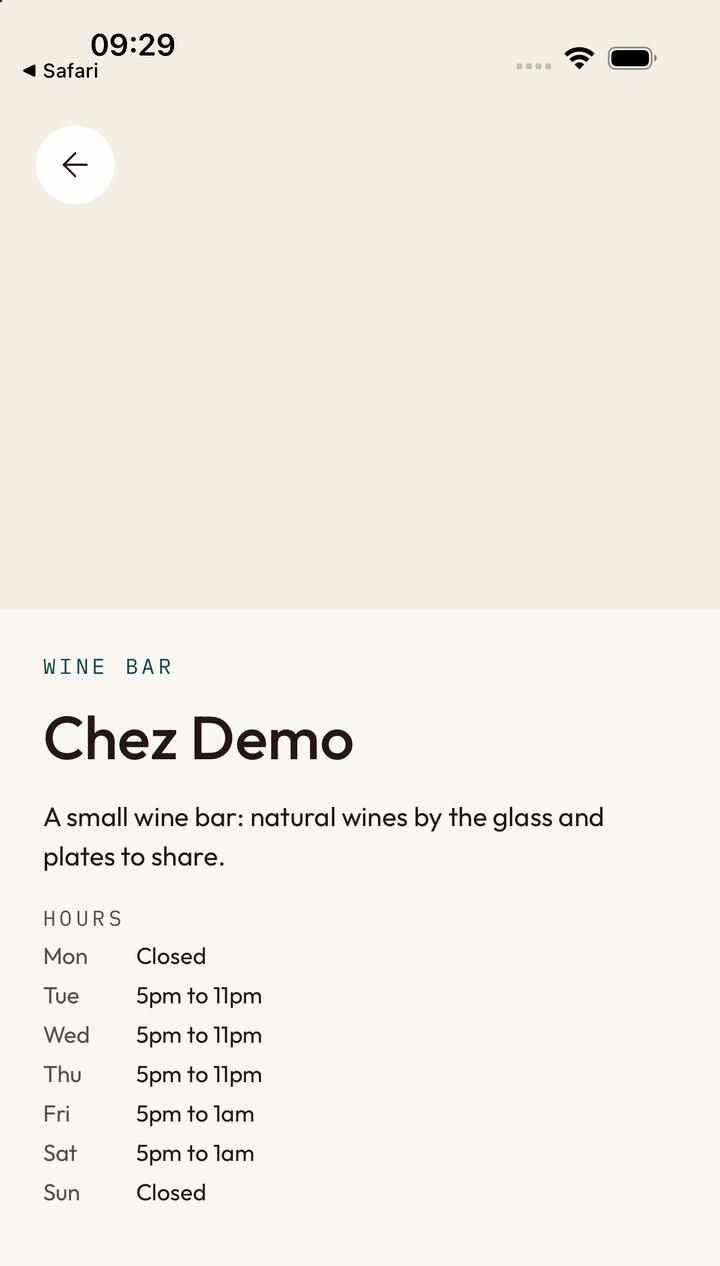
Your page in the app
Your wine list, your photos and a button to your site come below.
- The kind of place and its name.
- Your few lines.
- Your hours.
Your stock
Follow Every Bottle
Stock follows your bottles between your cellar, your bar and your shop, on a phone. You record what moves; the app shows members what you pour and what you sell. They never see a count.
-
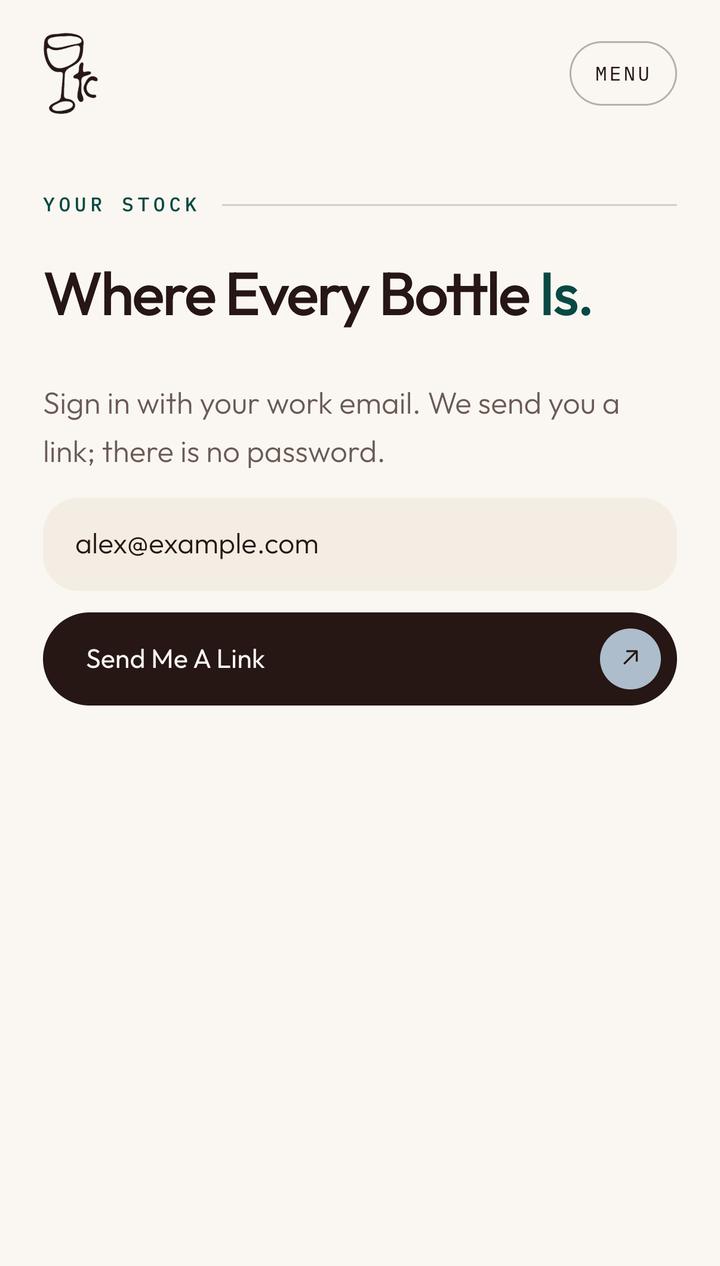
Sign in to Stock
Open thirstyc.com/stock. Each person on your team signs in with their own email.
- Your work email.
- Tap Send Me A Link.
-
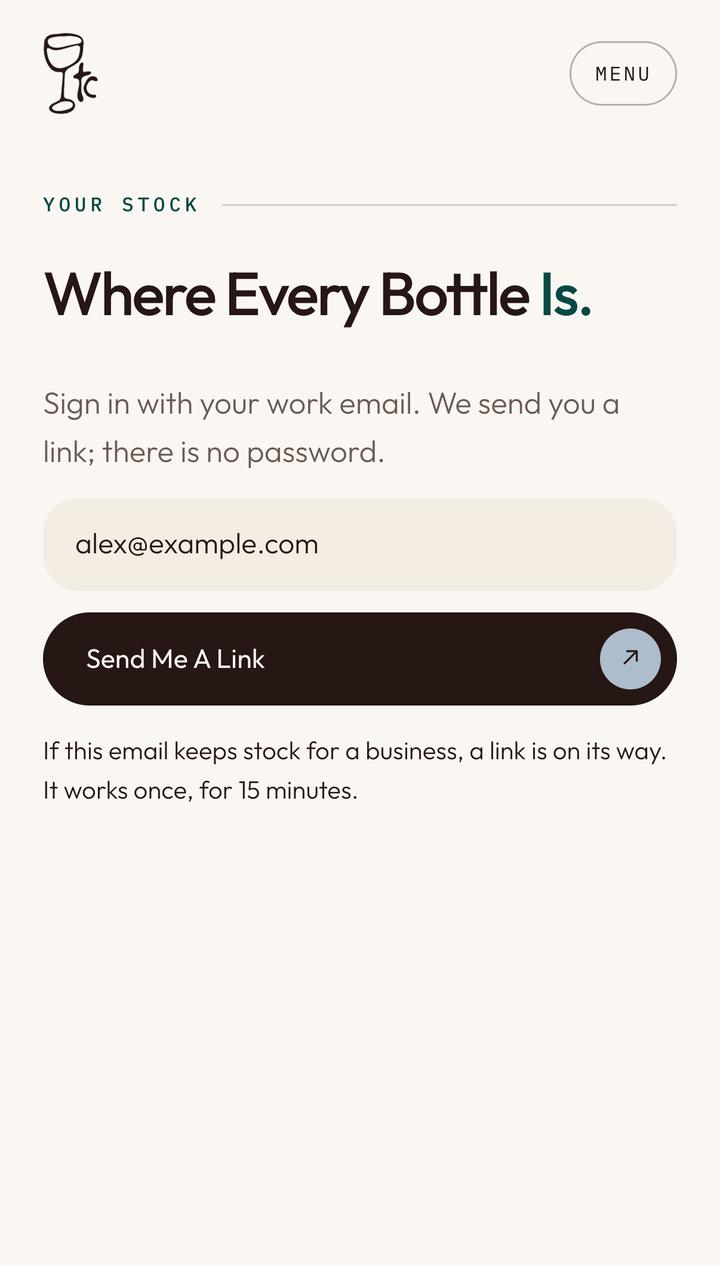
Open the link
- The link is on its way: same link, same 15 minutes. Signed in on your page, you are signed in here too.
-
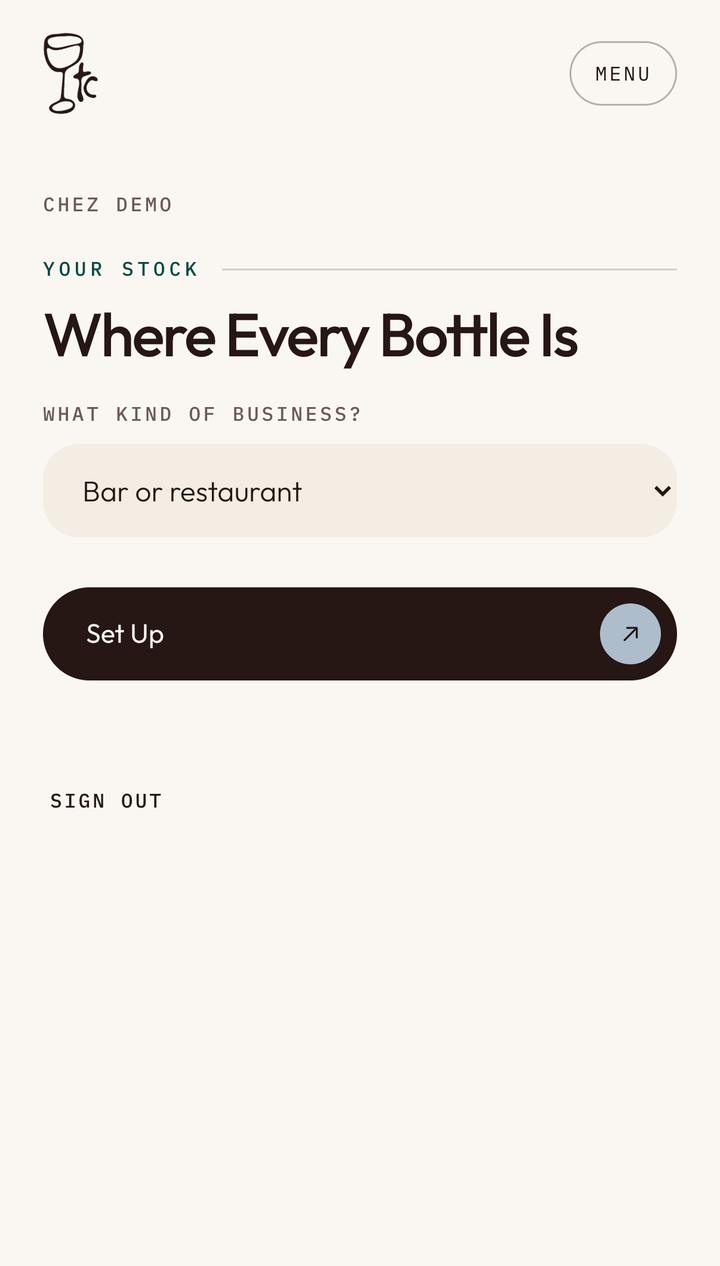
Say what kind of business
The first time only, for the owner.
- Choose the kind of business. A bar or restaurant starts with a Cellar and a Bar.
- Tap Set Up.
-
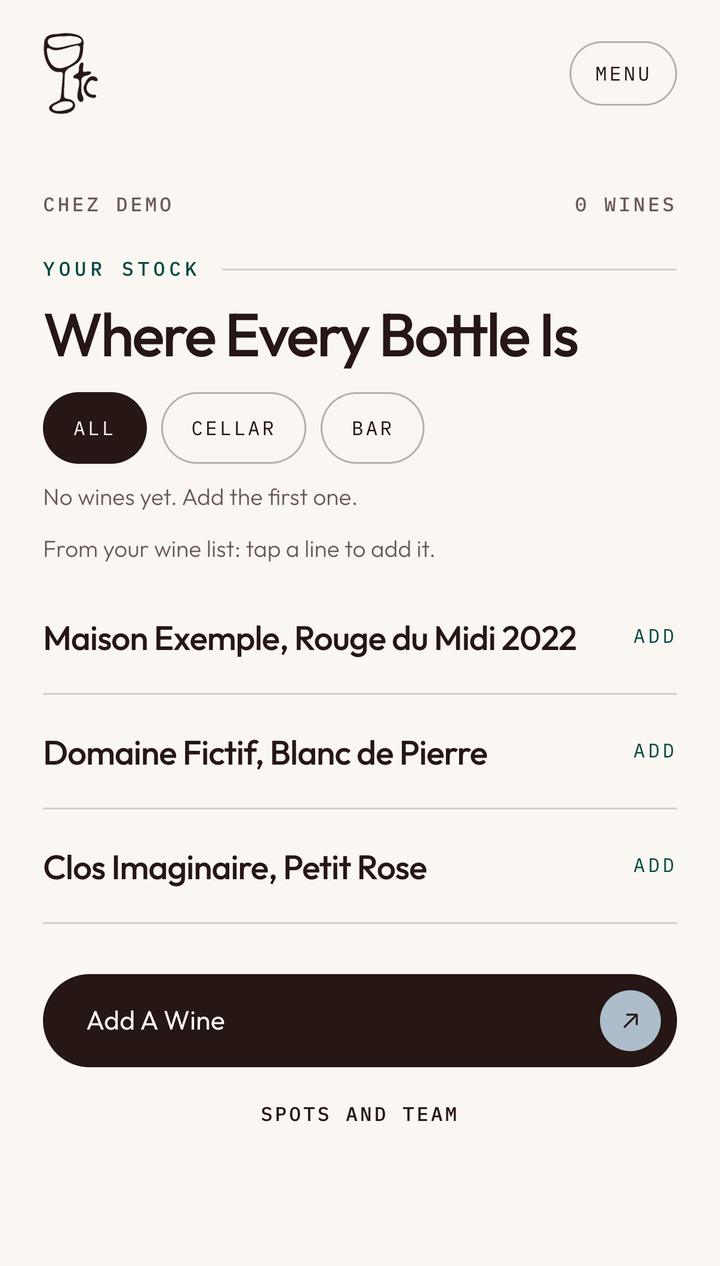
Start from your wine list
- Tap a line from your page’s wine list to add that wine.
- Or tap Add A Wine to type one.
-
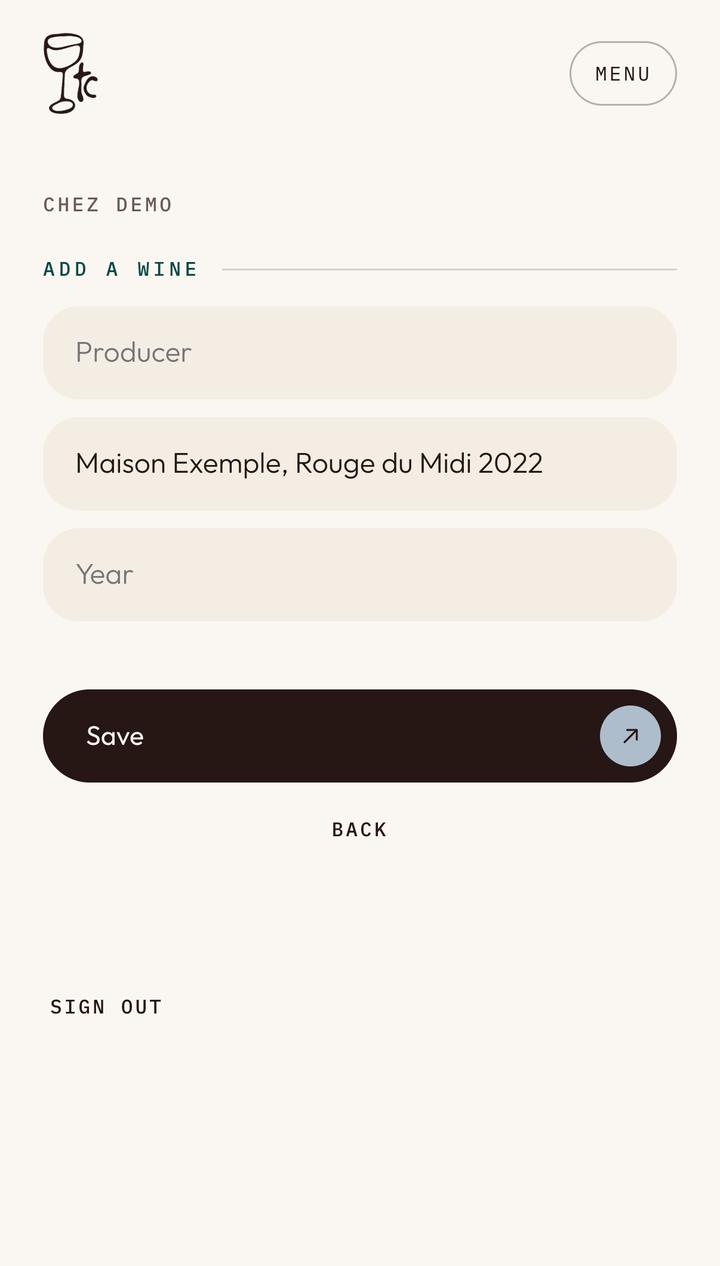
The line comes in as the wine’s name
- Split it into producer, wine and year, so the app matches it with what members drink.
-
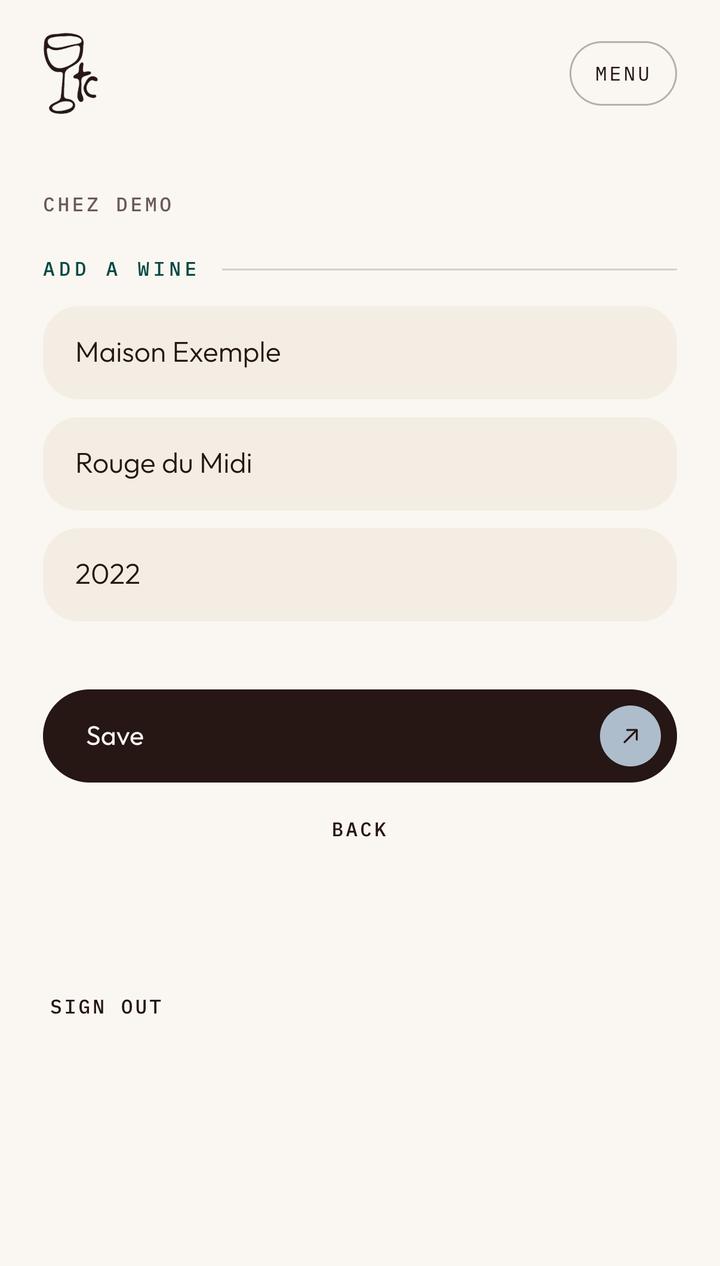
Producer, wine, year
Each year (vintage) is its own wine, counted on its own.
- Producer.
- Wine.
- Year.
- Tap Save.
-
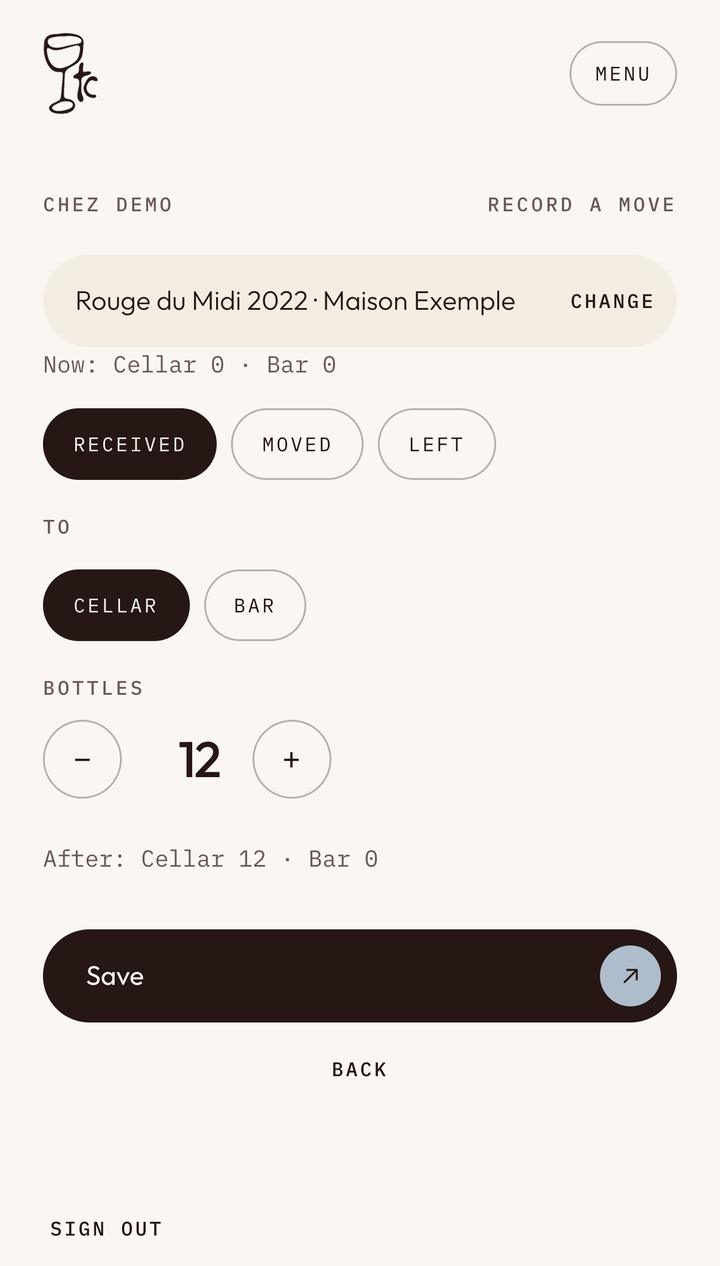
Say where the bottles went in
- A new wine opens on Received.
- Choose the spot.
- Set the number of bottles with − and +. The After line shows the counts before you save.
- Tap Save.
-
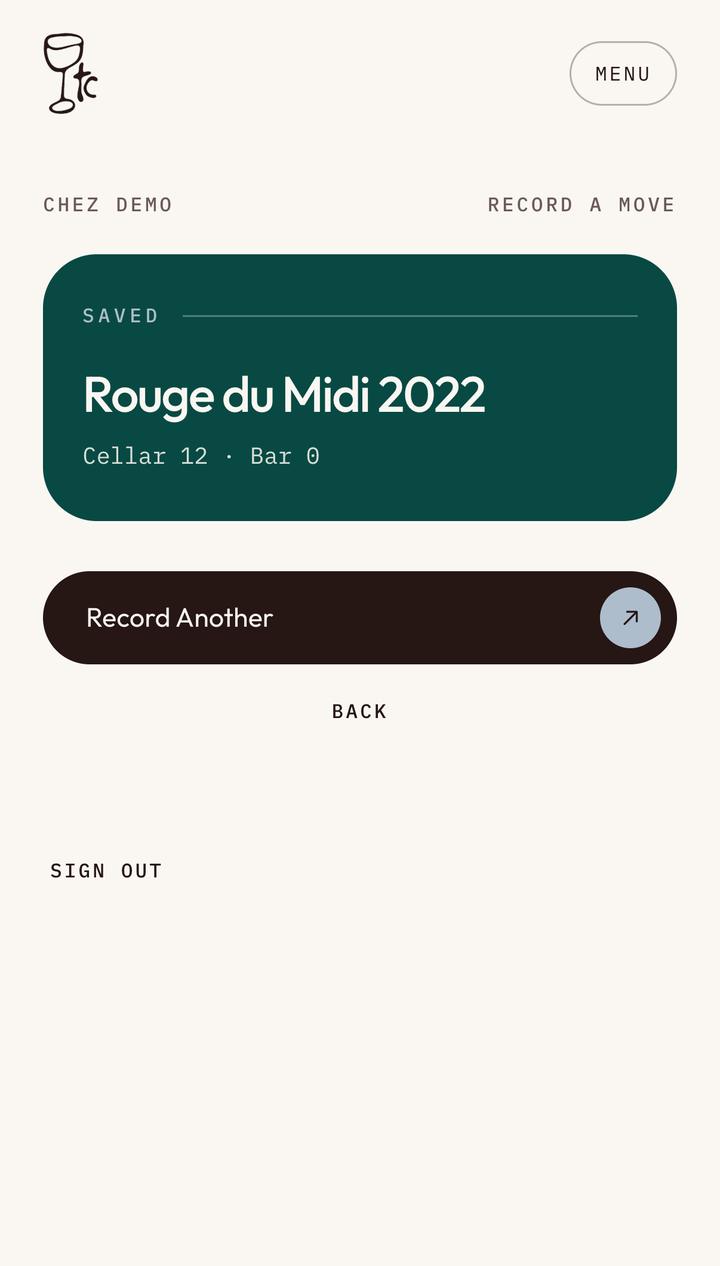
Saved
- The new counts show at once.
- Record Another keeps the same wine.
-
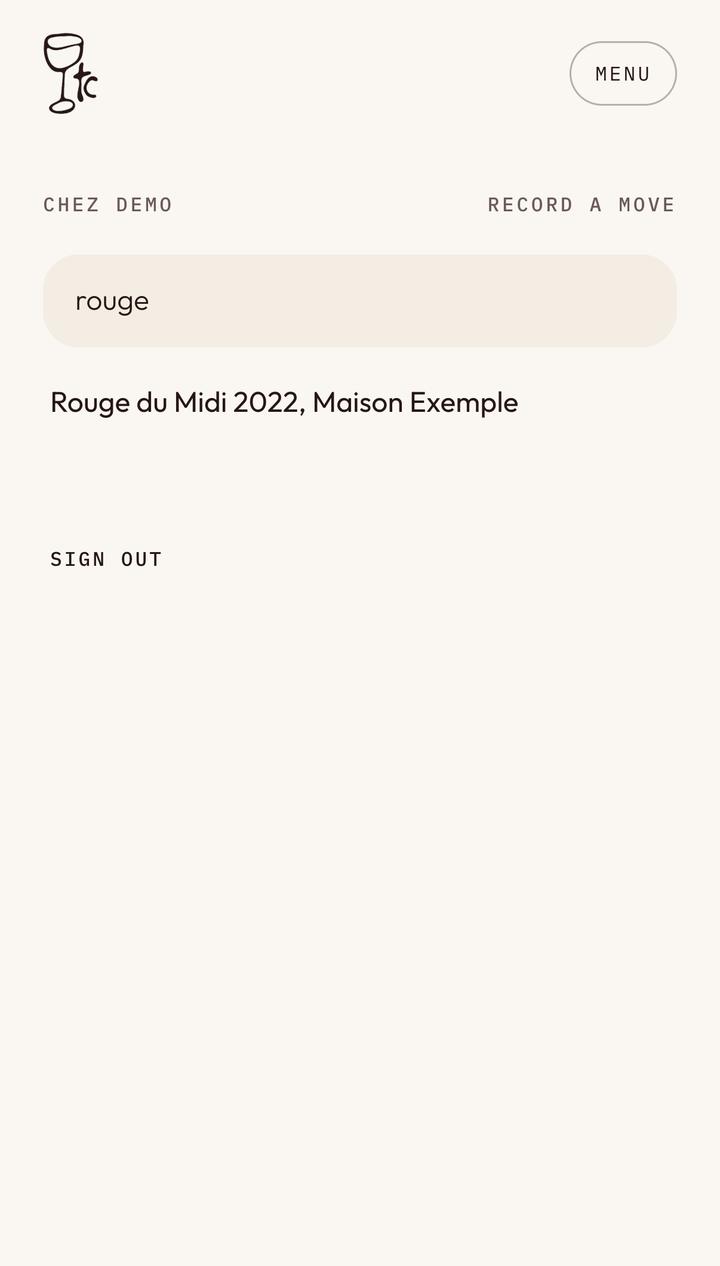
Record a move
Tap Record A Move.
- Start typing the wine.
- Tap it.
-
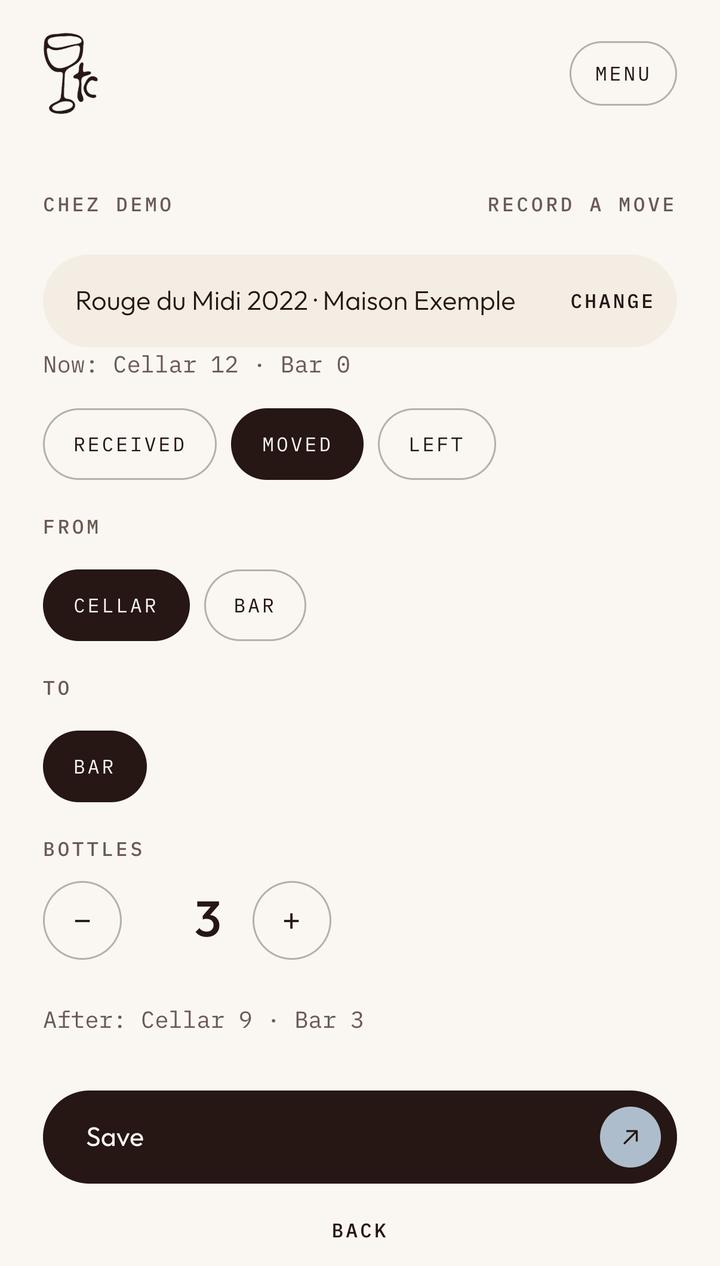
Moved: from one spot to another
Bringing bottles up from the cellar? Then tap Save.
- Moved.
- From: Cellar.
- To: Bar.
- The number of bottles.
-
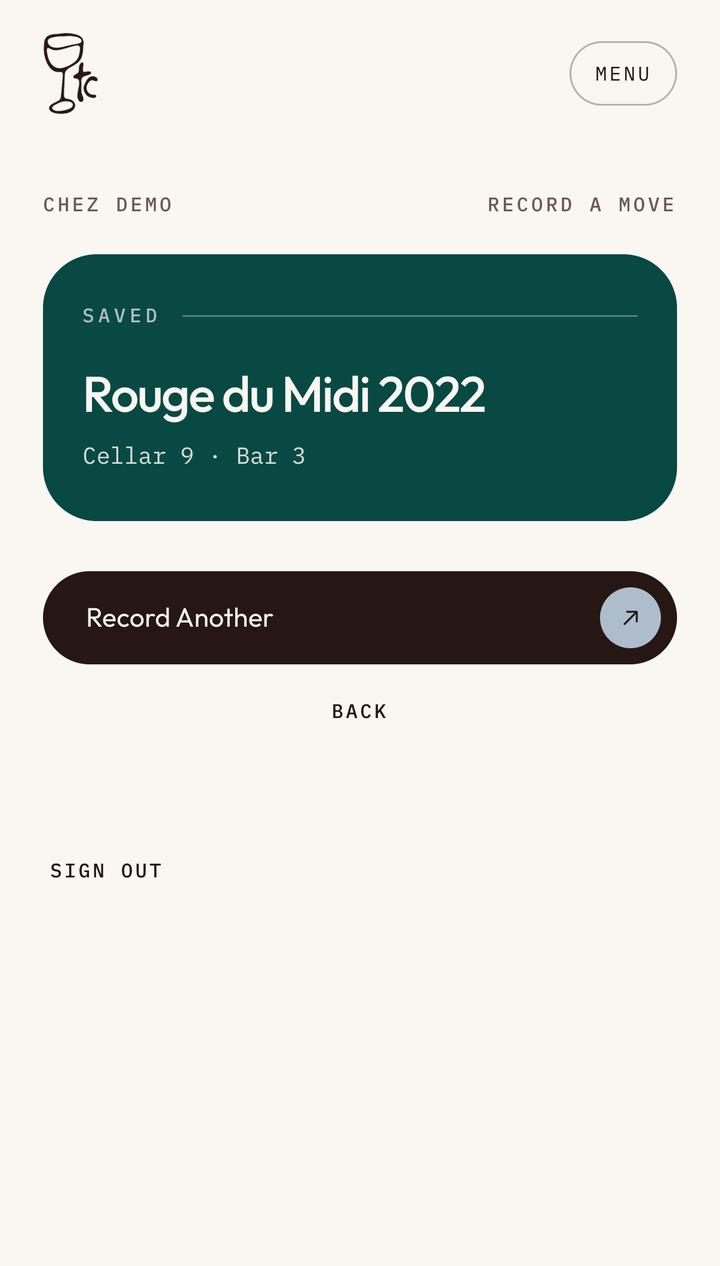
The counts follow
- The bar now has three bottles: members see this wine as poured at the bar.
-
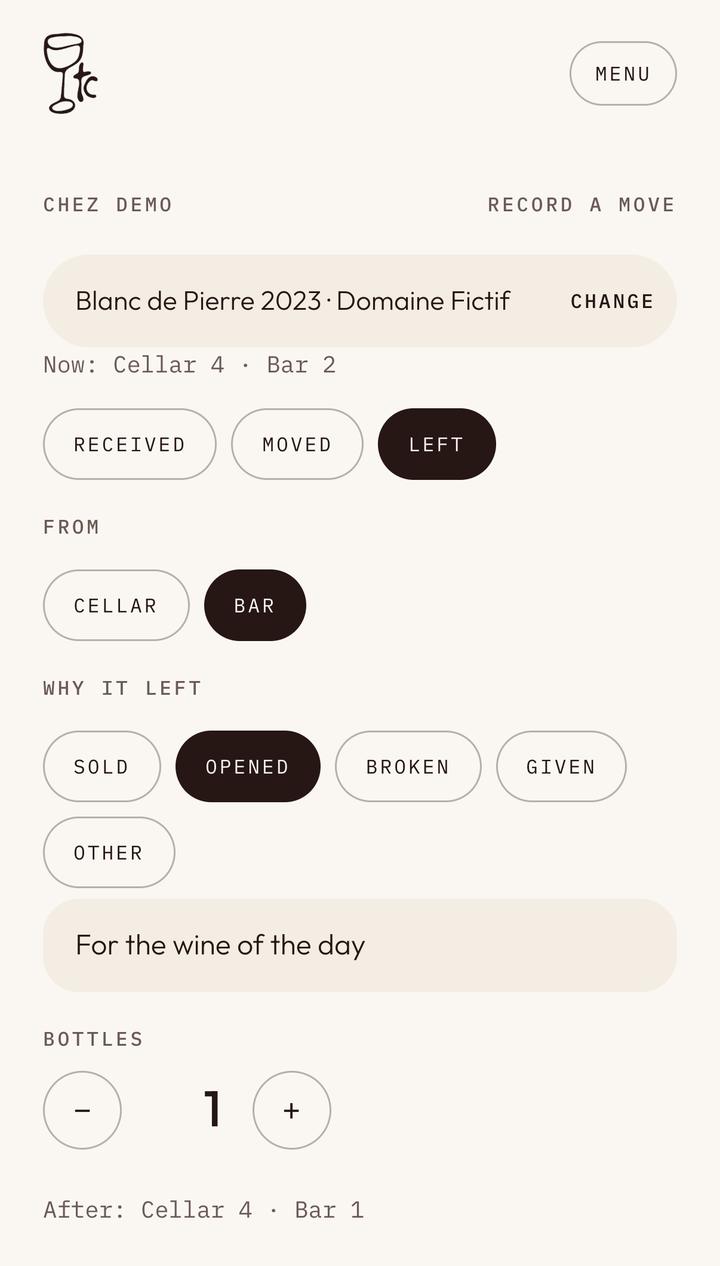
Left: sold, opened, broken, given
Then tap Save.
- Left.
- The spot they left from.
- Why. A bottle poured by the glass counts as left when it is opened.
- A note, if it helps.
-
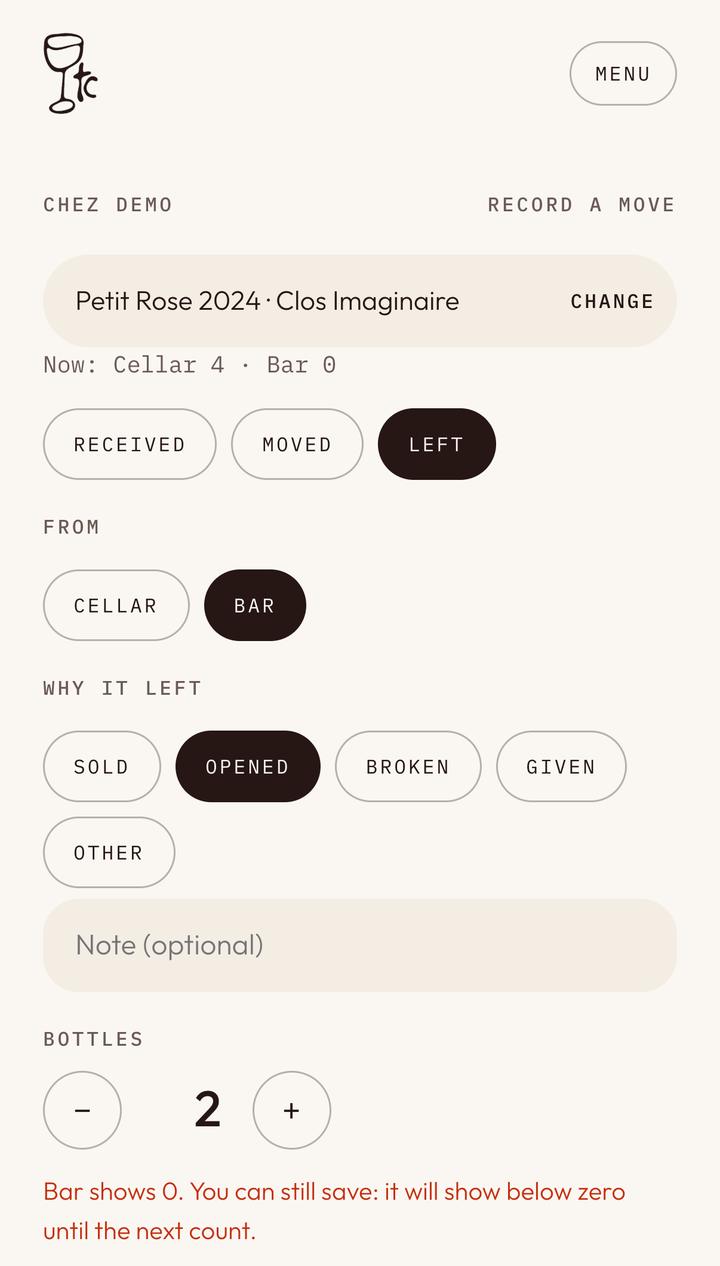
If the count looks wrong
- More bottles than the spot shows? You can still save. It shows below zero until your next count, so nothing stops you mid-service.
-
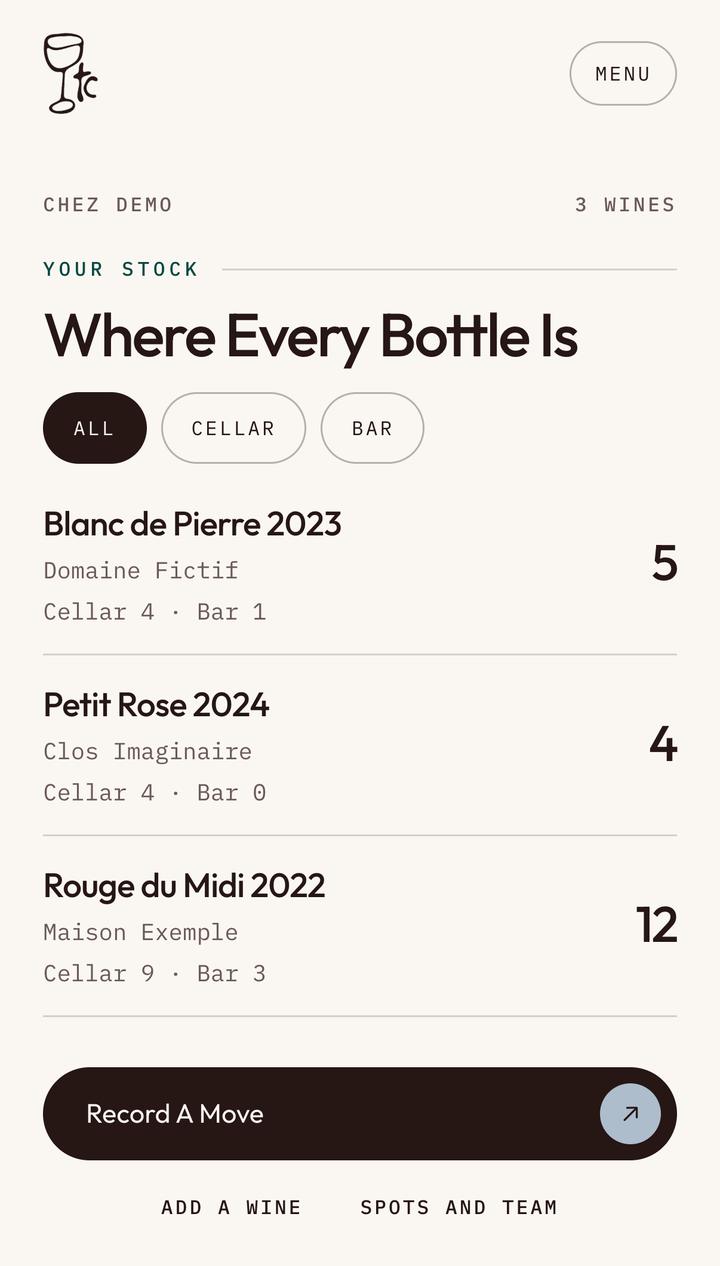
Where every bottle is
- Each wine, with its bottles per spot.
- Its total.
- Record A Move for the next one.
-
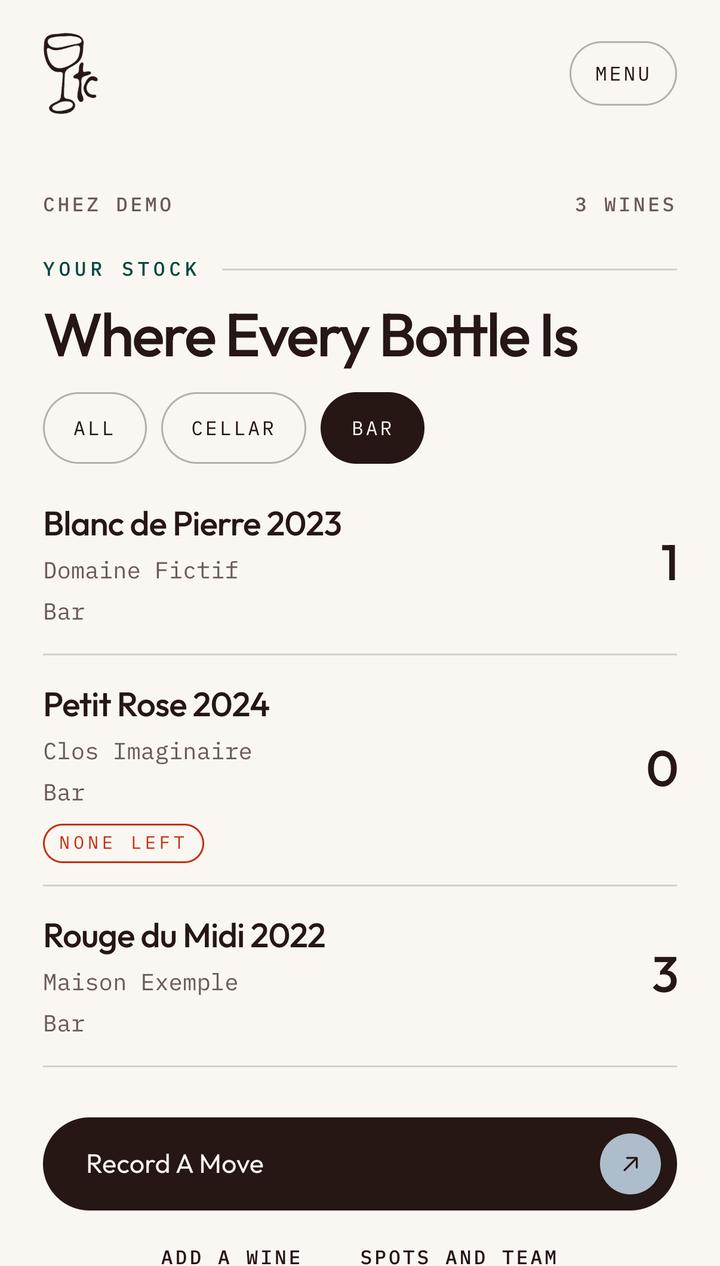
One spot at a time
- Tap a spot to see only its bottles.
- None Left: no bottle of this wine there.
-
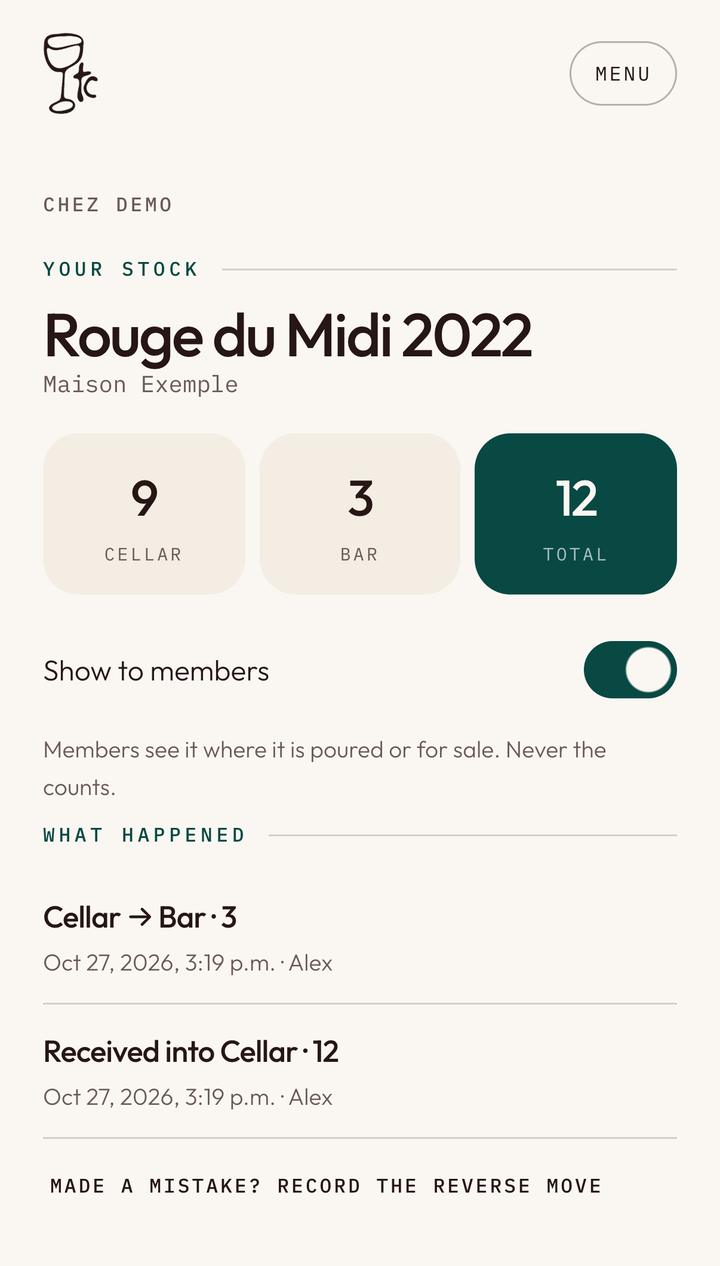
One wine and its history
Tap a wine in the list.
- Its bottles per spot, and the total.
- Show to members: turn it off to hide the wine in the app, for a private reserve.
- Who moved what, and when. Moves are never erased.
- Made a mistake? Record the reverse move.
-
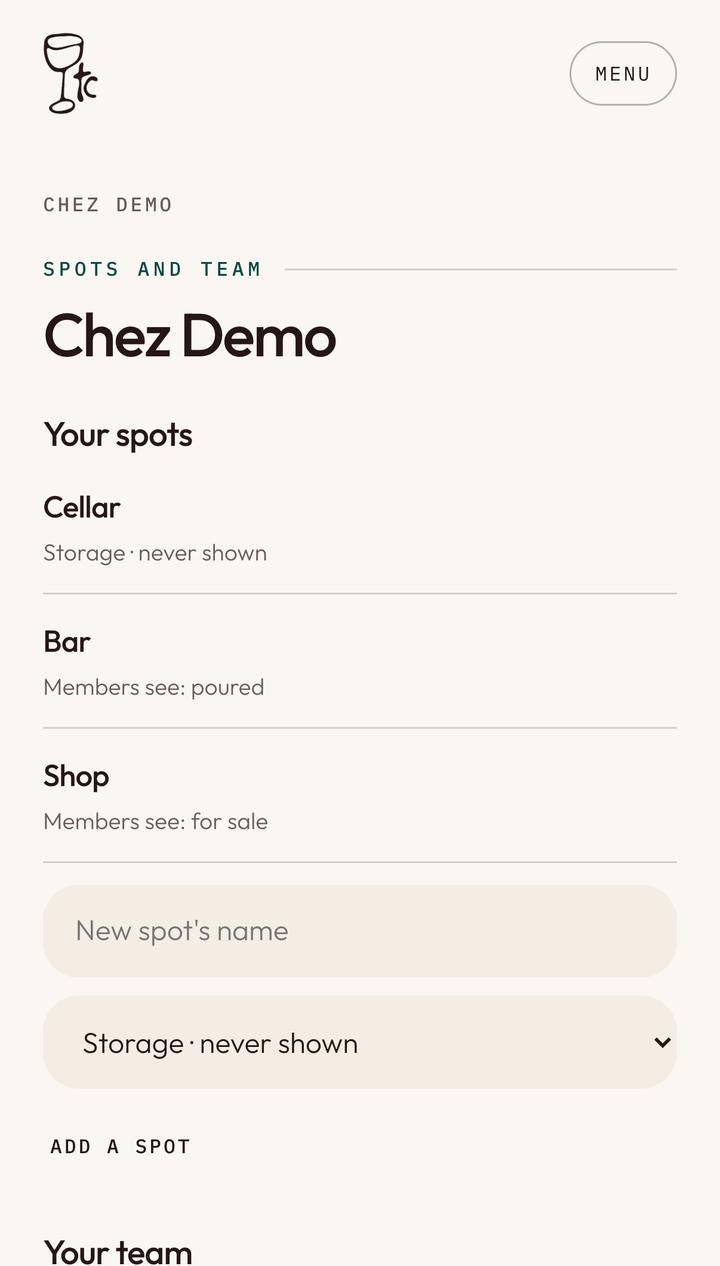
Your spots
For the owner, under Spots And Team.
- What members see of each spot: a storage spot never shows, a poured spot shows as poured, a for-sale spot as for sale.
- A new spot’s name: a shop, a second cellar.
- What members see of it.
- Tap Add A Spot.
-
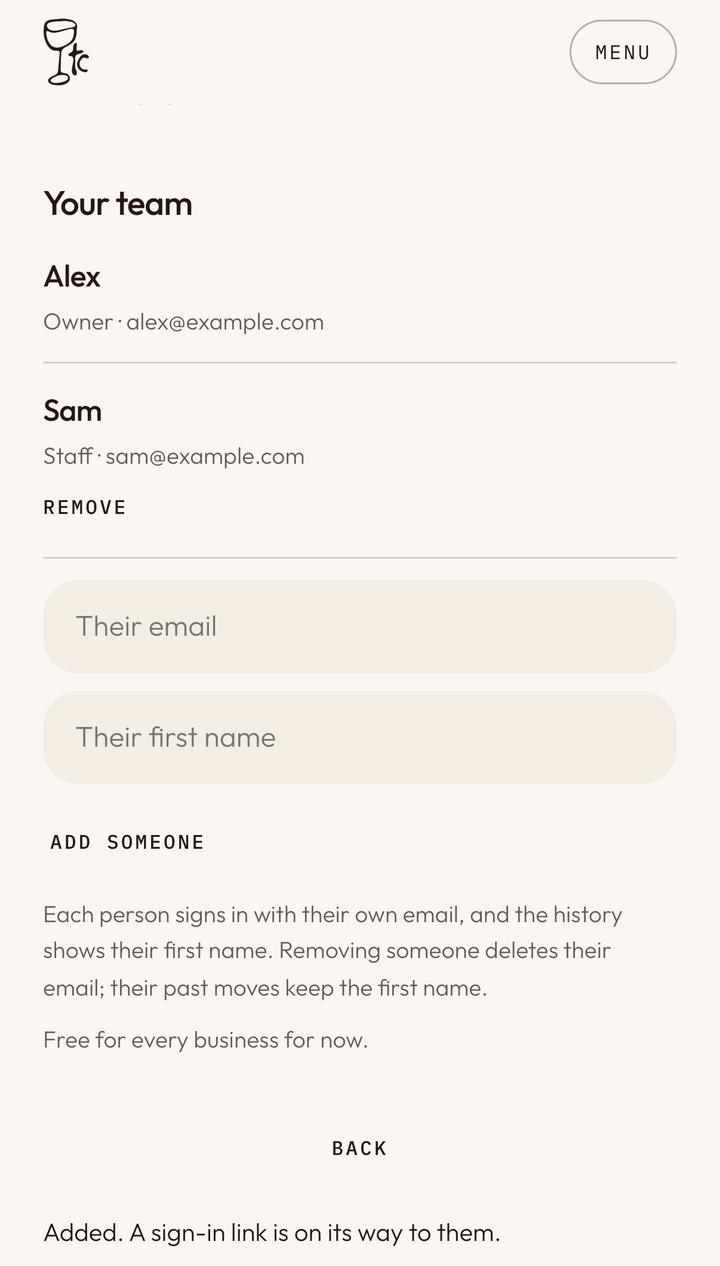
Your team
- Each person, with their first name. The history shows it.
- Remove deletes their email; their past moves keep the first name.
- To add someone: their email, then their first name.
- Tap Add Someone. We send them a sign-in link.
-
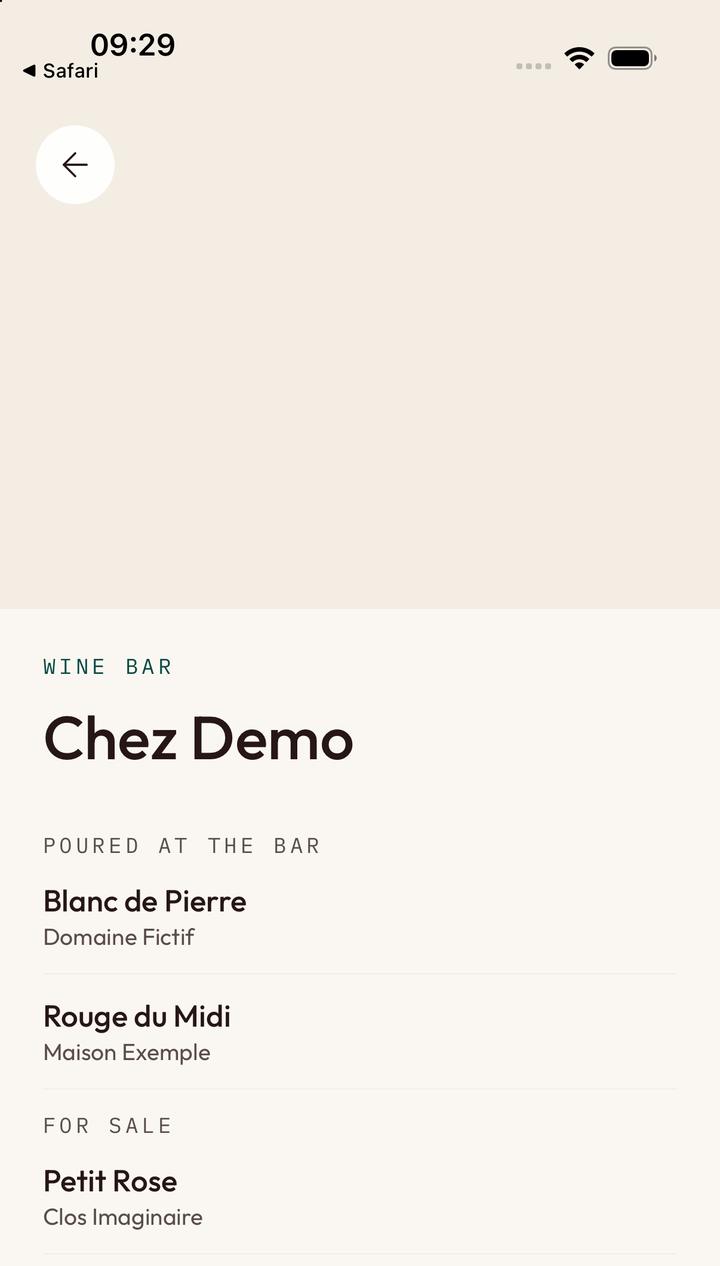
What members see
When the last bottle leaves, the wine goes. Members never see a count, your cellar, a hidden wine or who moved what.
- Wines with bottles at the bar.
- Wines in a for-sale spot.
Questions
Write To Us
Your place is not on the map, a code never came, or something here does not match what you see? Write to us.